

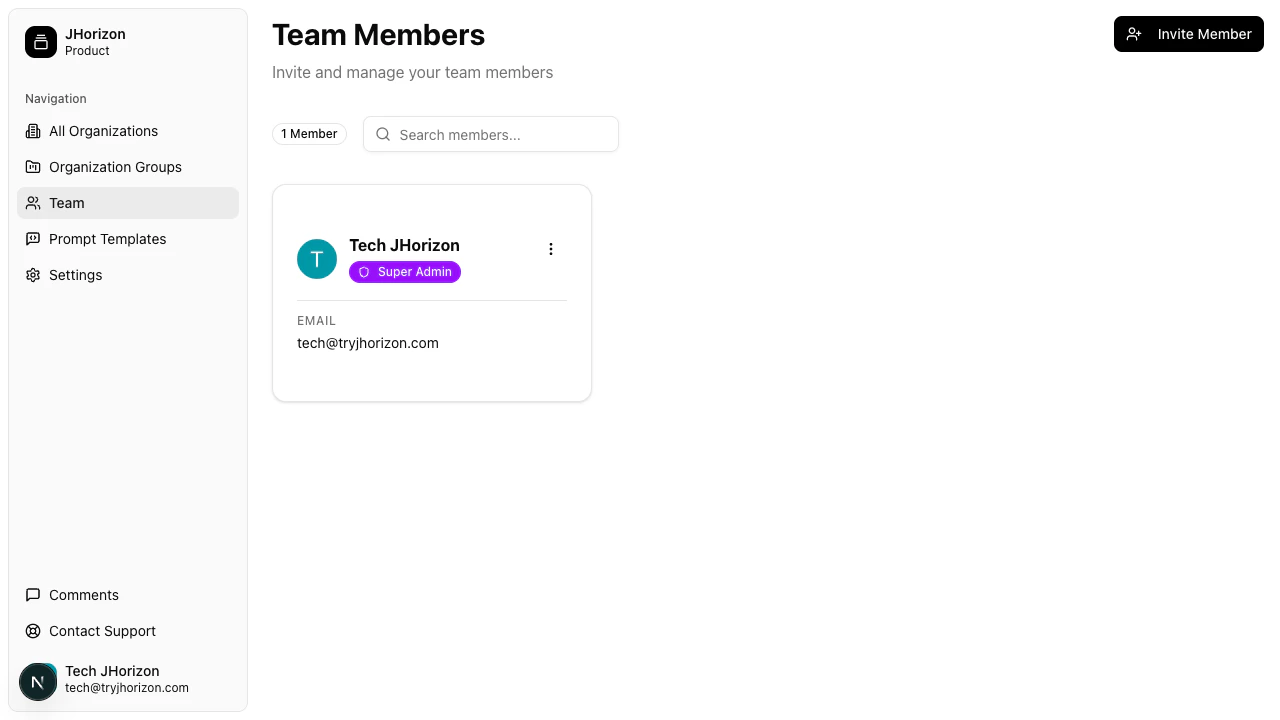
Navigate to the team page
Go to/product/team to view all members of your company. Each entry shows the member’s avatar, name, role, and email address.
Roles
Invite a team member
1
Open the invite modal
Click Invite on the team page.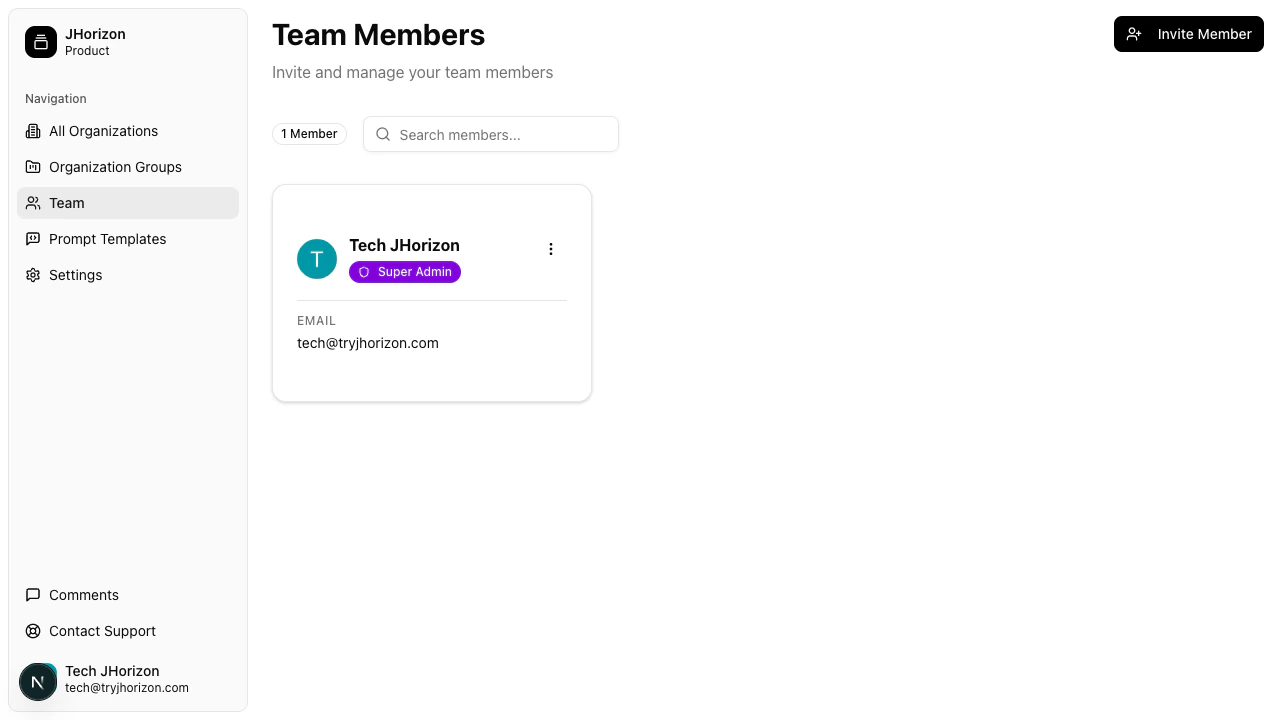
2
Enter email and select role
Enter the team member’s email address and select a role: User or Admin.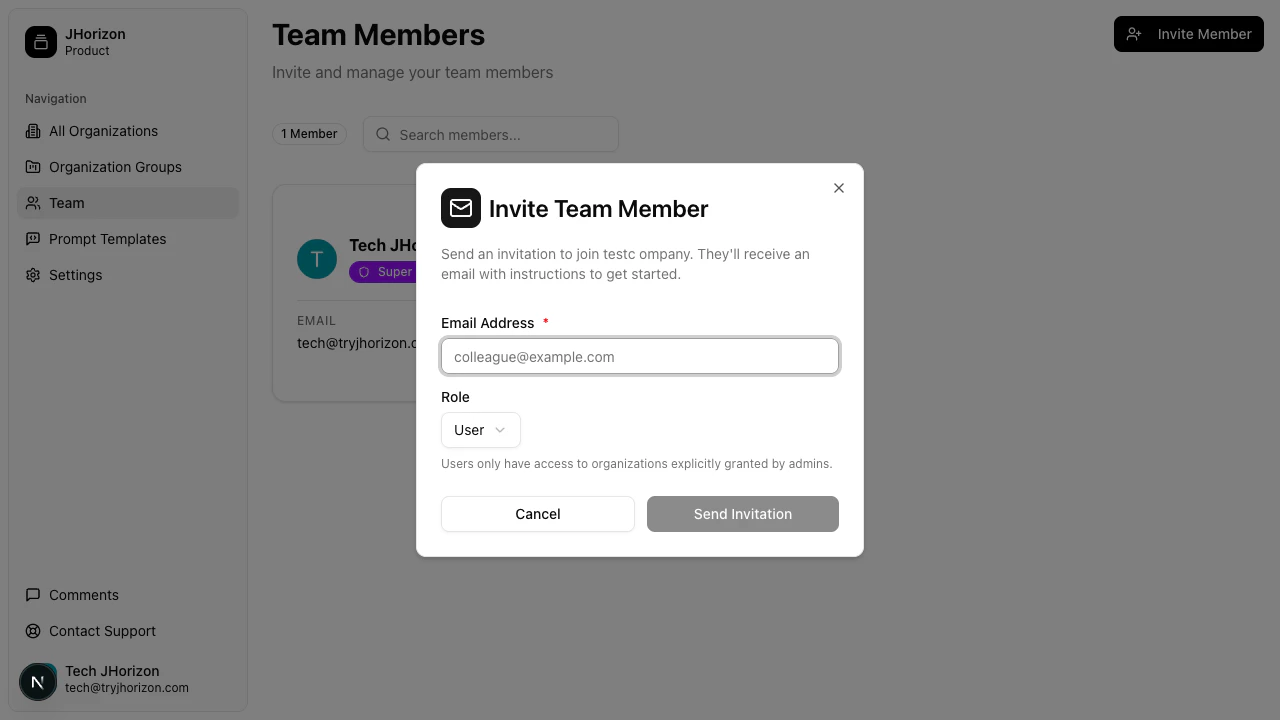
3
Send the invitation
Click Send Invitation. The team member receives an email with instructions to join your company.
The Invite button is disabled if you do not have permission to invite members. Contact an Admin in your company to request access.
Search members
Use the search bar at the top of the team page to filter members by name or email. The member count badge next to the search bar shows the total number of team members.Manage existing members
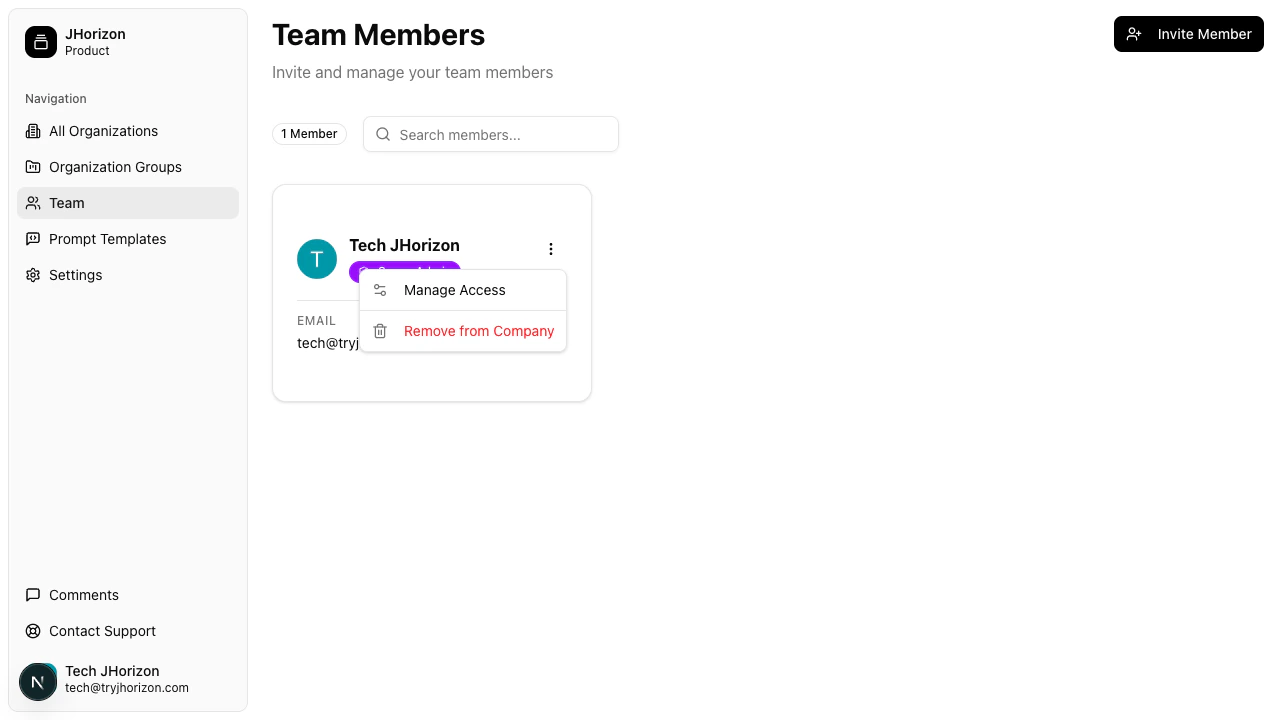
Click the actions menu next to any team member to access management options:- Manage Access — control which organizations the member can access
- Remove from Company — revoke the member’s access to the platform entirely
Troubleshooting
Team member did not receive the invitation
Team member did not receive the invitation
Ask the team member to check their spam or junk folder. The invitation email is sent to the address you entered in the invite modal. If the email address was mistyped, send a new invitation with the correct address.
Cannot change a member's role
Cannot change a member's role
Role changes require Admin permissions. If you are an Admin and the option is not available, the member may be the last remaining Admin — at least one Admin must exist at all times.
Related pages
- Company settings — manage company-level configuration