

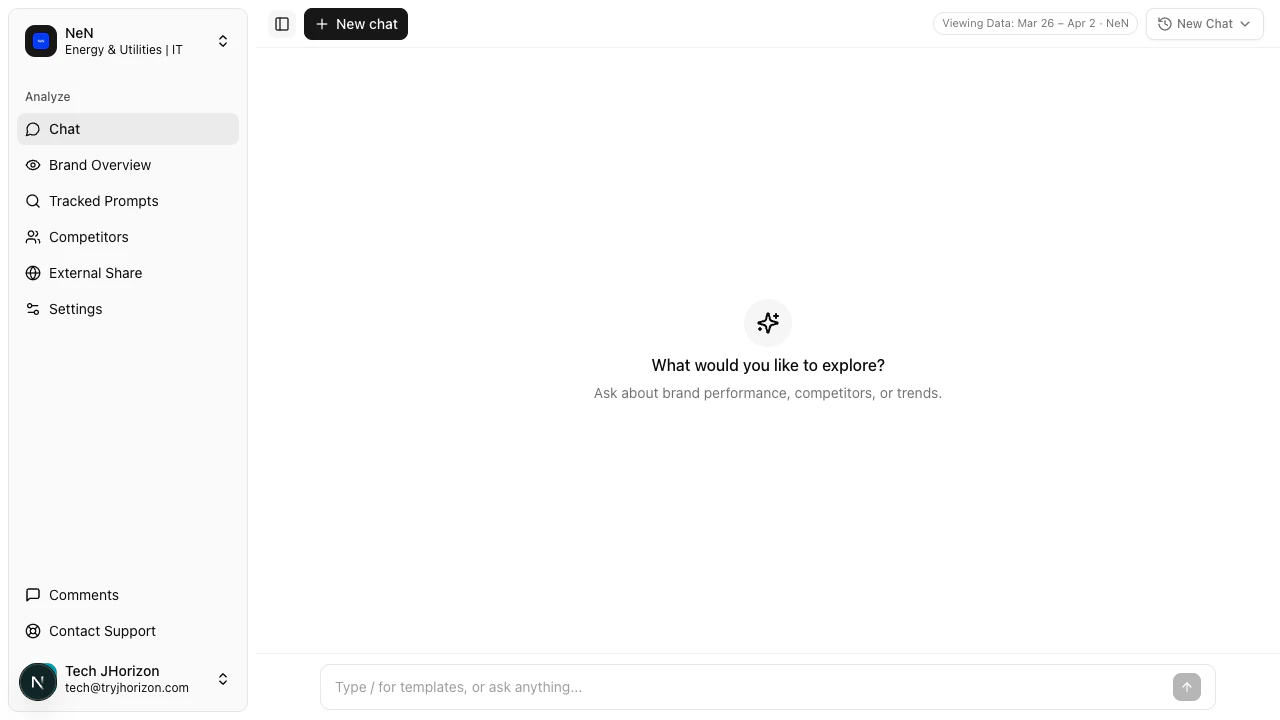
/product/{orgId}/chat to start a conversation.
Ask questions about your brand
Type a question in the input field to get responses based on your organization’s analysis data. You can ask about visibility scores, citations, sentiment, competitor comparisons, and more.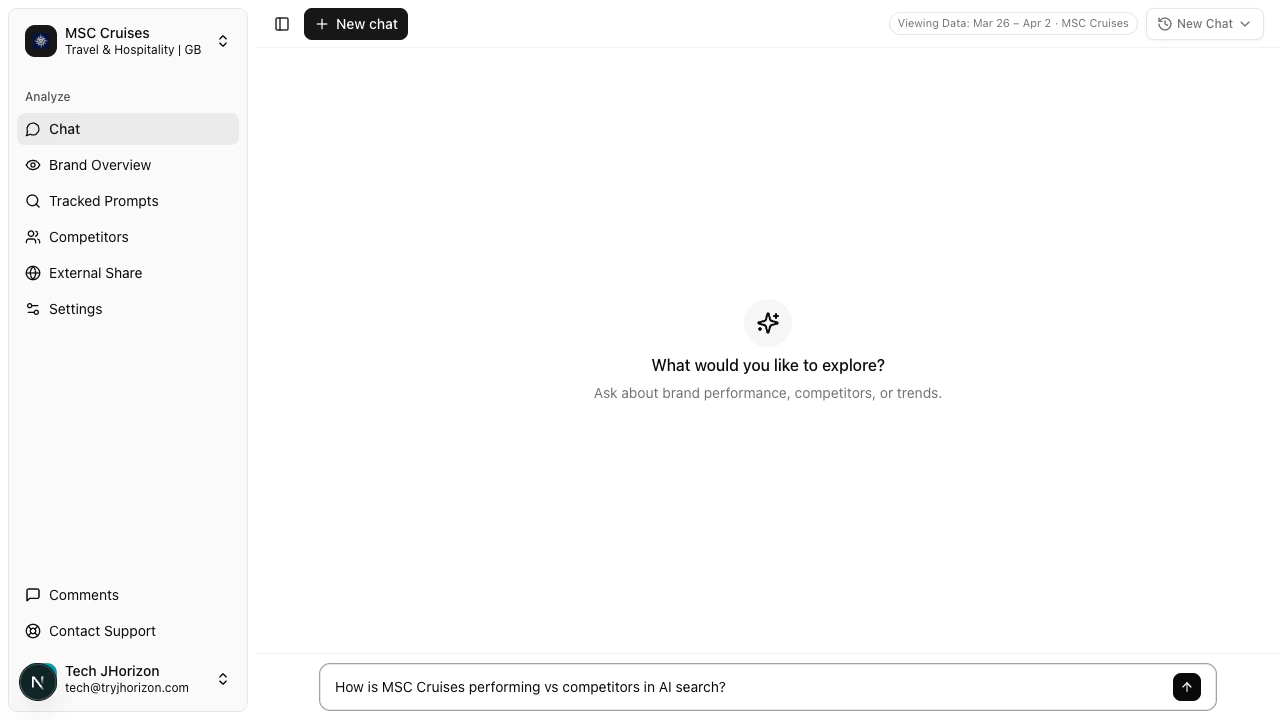
- “How does our visibility score compare to last week?”
- “Which AI platforms mention us most?”
- “What is our brand ranking on Gemini?”
- “What is our citation rate on ChatGPT compared to competitors?”
- “How does our sentiment compare to [competitor name]?”
- “Which competitor has the highest market share on Perplexity?”
- “What are our top citation sources?”
- “Which domains negatively cite our brand?”
- “Show me citations from the last analysis run.”
- “Show me our sentiment trend over the last month.”
- “Has our visibility score improved this week?”
- “Which prompts saw the biggest ranking change?”
Data range
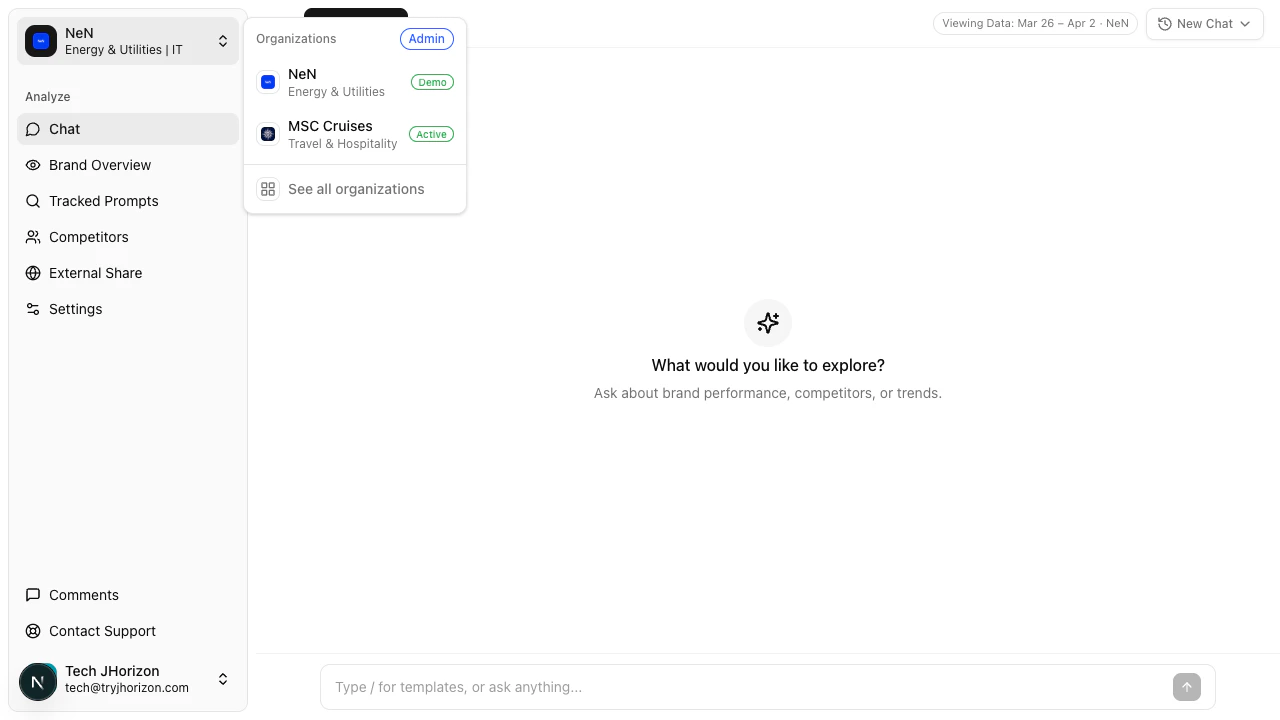
The chat draws from your organization’s completed analysis runs. A data range indicator (e.g., “Viewing Data: Mar 26 - Apr 2”) appears in the chat interface, showing which analysis period is covered. All responses reflect data within this range. The AI cannot access data outside the displayed range. If you need insights from an earlier period, adjust the analysis week using the dashboard filters and return to chat.Chat history
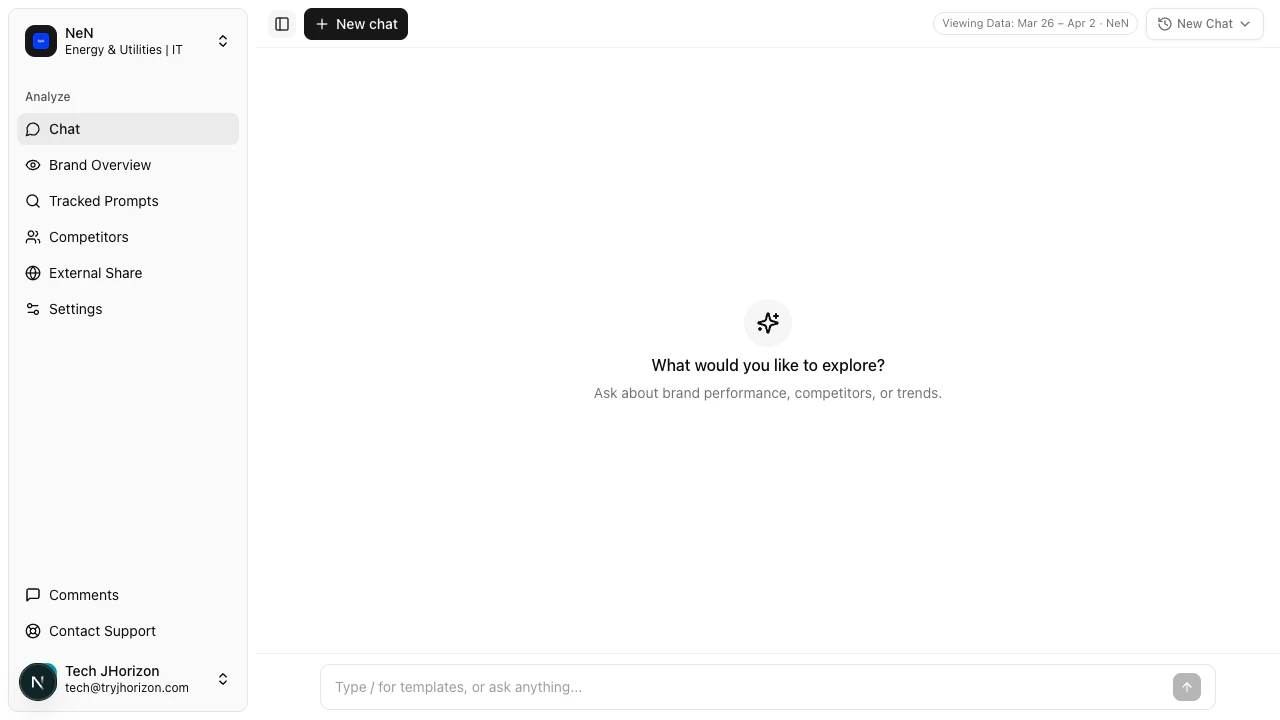
Start a new conversation
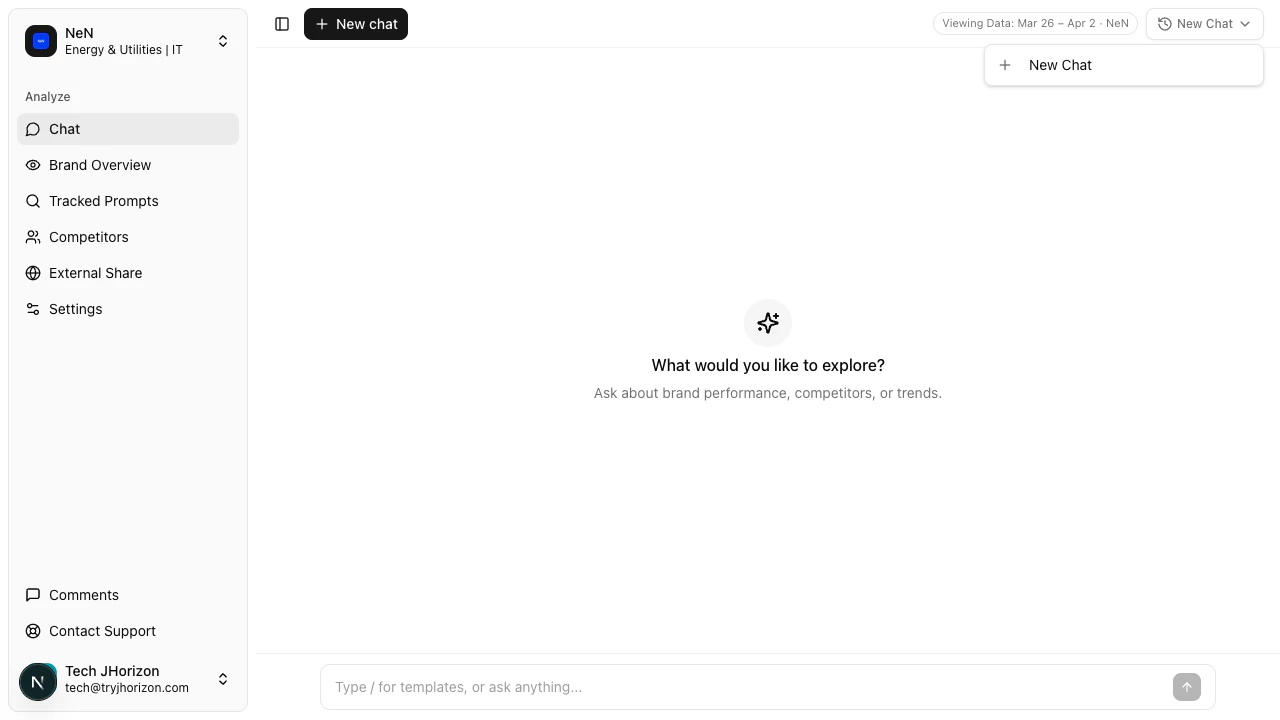
Switch organizations
Conversation context
The AI assistant maintains context within a single conversation. Follow-up questions can reference previous answers — for example, ask “Break that down by platform” after a general visibility question. Start a new conversation when you want to reset context entirely. Long conversations with many questions may produce less focused responses as context accumulates.What the AI chat can do
- Answer questions about your organization’s visibility, citations, sentiment, and competitive data
- Compare metrics across time periods, platforms, and competitors
- Summarize trends and highlight changes
What the AI chat cannot do
- Modify your data, settings, or tracked prompts
- Access data from organizations you are not currently viewing
- Provide real-time data — responses reflect the most recent completed analysis run
- Answer questions unrelated to your brand’s AI visibility data
Troubleshooting
AI returns 'no data available'
AI returns 'no data available'
Your organization may not have completed an analysis run yet. Check the dashboard at
/product/{orgId}/dashboard to verify that analysis data exists. If the dashboard shows data but chat does not, try starting a new conversation.Responses seem inaccurate
Responses seem inaccurate
Check the data range indicator to confirm you are viewing the correct analysis period. Rephrase your question to be more specific — broad questions may produce generalized answers. If the issue persists, compare the chat response with the corresponding dashboard tab to verify.
Chat is slow to respond
Chat is slow to respond
Complex questions that require cross-referencing multiple data sources take longer to process. Simplify your question or break it into smaller parts. If the chat consistently loads slowly, check your network connection.
Related pages
- Prompt templates — use reusable templates in chat
- Use cases — common workflows and scenarios