Create reusable prompt templates and use them in AI chat with the slash command.
Prompt templates let you save frequently used questions and reuse them across chat sessions. Templates are shared across all organizations in your company, so every team member can access them.
Use templates
Create templates
1
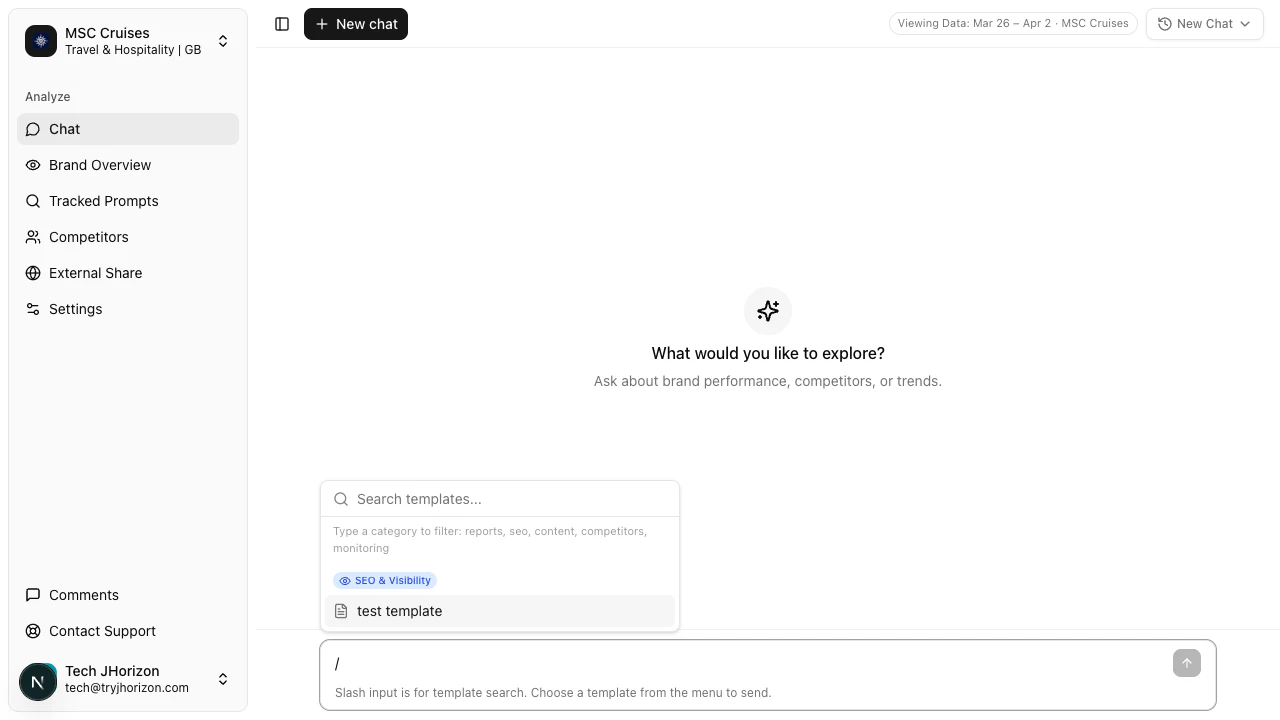
Open the template picker
In the chat input field, type / to open the template picker.
2
Browse templates
Browse available templates by category. Scroll through the list or type to filter.
3
Select a template
Click a template to insert its text into the chat input.
4
Edit and send
Modify the template text if needed, then send the message. The AI chat responds using the template as your question.
Templates are available in every chat session. Type / at any time to access them.
1
Navigate to Prompt Templates
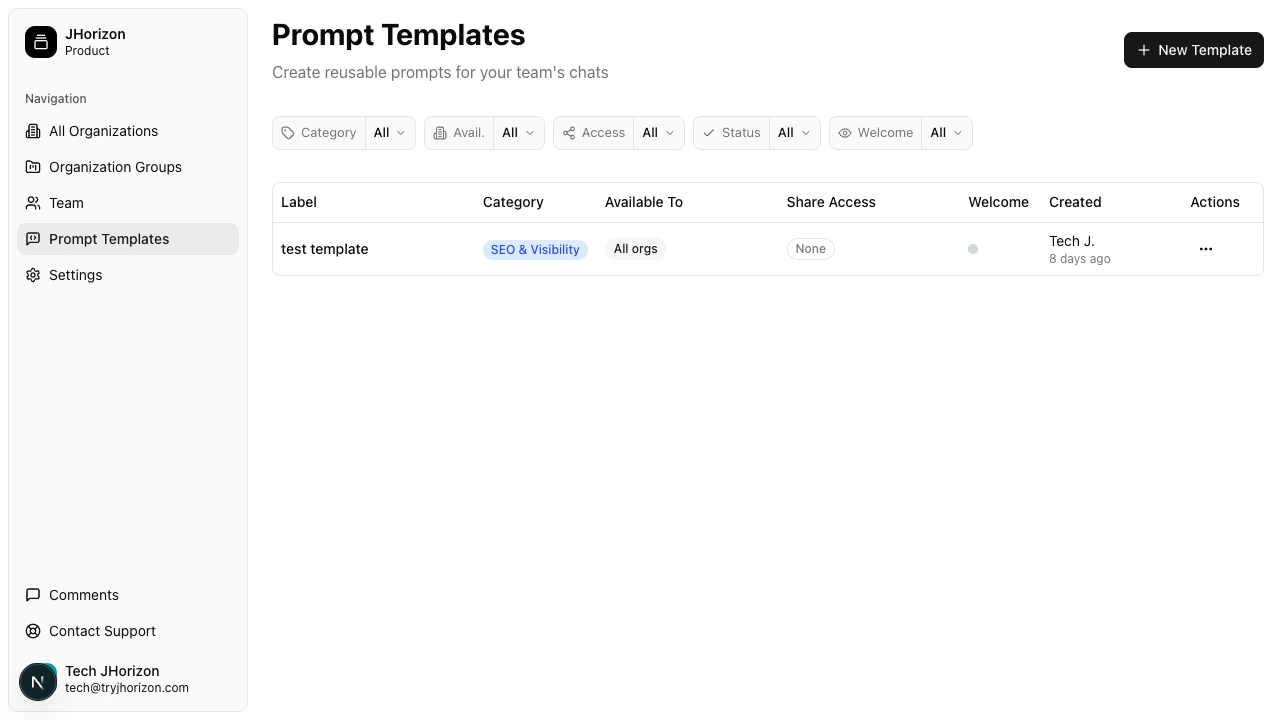
Go to Prompt Templates at /product/prompts. This is a platform-level page accessible outside of any specific organization.
2
Create a new template
Click + New Template to create a new template.
3
Configure your template
Fill in the following fields:
Field
Description
Template name
A short, descriptive name for the template. This appears in the / picker.
Category
Group related templates together (e.g., “Visibility”, “Competitors”, “Citations”). Templates in the picker are organized by category.
Prompt text
The question or instruction to reuse. Write it as you would type it in chat.
4
Set availability and access
Configure how the template is shared:
Availability — Choose whether the template is available across all organizations in your company or restricted to specific organizations.
Access — Set who can use the template: all team members or admins only.
Status — Set the template to Active (visible in the / picker and usable in chat), Inactive (hidden from the picker, not usable), or Draft (work in progress, not yet published).
Welcome — Toggle this on to display the template as a suggested starting question when team members open a new chat session.
5
Save
Save the template. It becomes available to all team members via the / command in chat.
The prompt templates page at /product/prompts includes column filters to help you find specific templates:
Filter
Options
Category
Filter by the category assigned to each template
Avail.
Filter by availability scope (all organizations or specific)
Access
Filter by access level (all team members or admins only)
Status
Filter by Active, Inactive, or Draft
Welcome
Filter by whether the template appears as a welcome suggestion
Create templates for your most common analysis questions — visibility comparisons, competitor benchmarks, and citation reviews. This saves time and ensures consistency across your team’s AI chat usage.