> ## Documentation Index
> Fetch the complete documentation index at: https://knowledge.tryjhorizon.com/llms.txt
> Use this file to discover all available pages before exploring further.
# Manage prompts
> Add, remove, and generate tracked prompts for your organization.
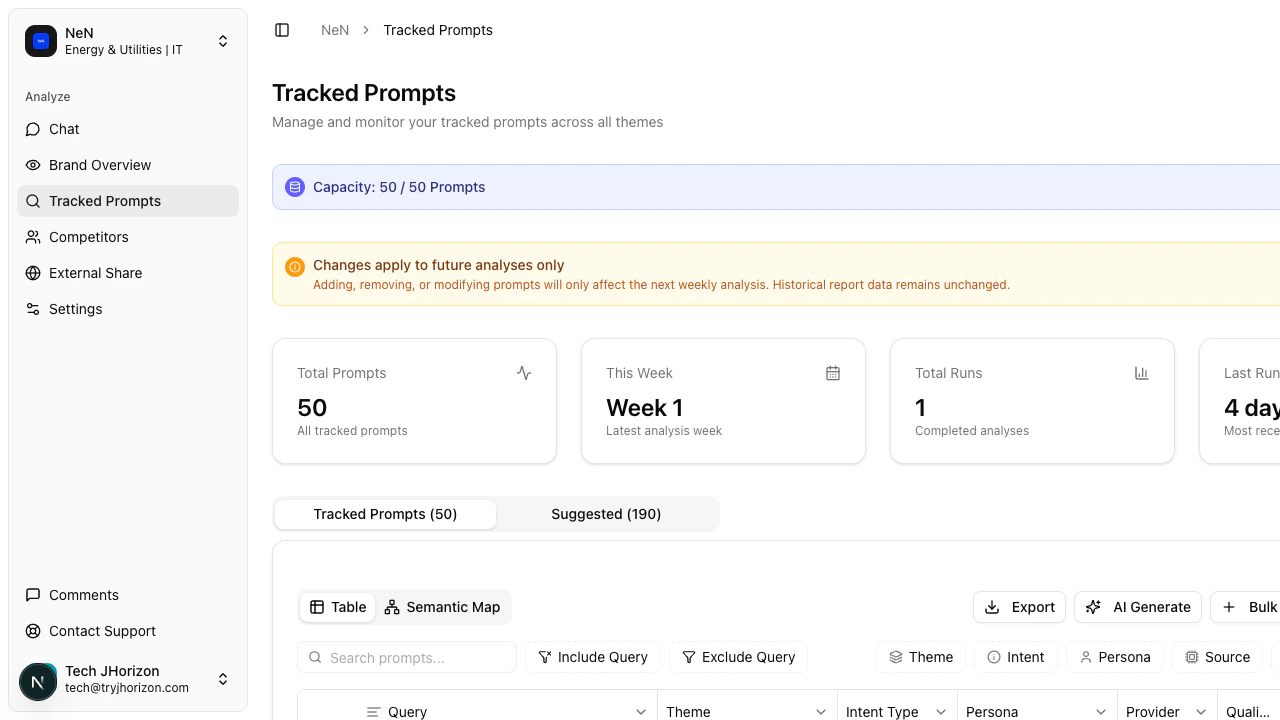 You can manage your tracked prompts from the tracked prompts page at `/product/{orgId}/tracked-prompts`. From here you can include or exclude prompts, generate new ones with AI, bulk add prompts, and export your list.
## Include or exclude prompts
Each tracked prompt has an include/exclude toggle. Excluding a prompt removes it from future analysis runs without deleting it.
Navigate to `/product/{orgId}/tracked-prompts` to see your full list of tracked prompts.
Locate the prompt in the list. Use the search bar or scroll to find it.
Click the toggle next to the prompt. When set to **Exclude**, the prompt is skipped in future analysis runs but remains in your list. Toggle it back to **Include** when you want to resume tracking.
Excluding prompts does not count against your capacity limit. Use this to temporarily pause tracking without losing your prompt history.
## AI-generated prompts
J-Horizon can suggest tracked prompts based on your brand profile, industry, and competitors.
Before using AI Generate, make sure your brand profile is configured and you have available prompt capacity. If either is missing, the generation will return no results.
On the tracked prompts page, click the **AI Generate** button. J-Horizon analyzes your brand profile, industry, and competitor data to create prompt suggestions.
A list of AI-generated prompt suggestions appears. Each suggestion includes the prompt text and the reasoning behind why it was recommended.
Check the box next to each prompt you want to track. You can select all suggestions or pick individual ones.
Click **Add Selected** to add the chosen prompts to your tracked list. The new prompts appear in your list and are included in the next analysis run.
## Bulk add
Use bulk add to add multiple prompts at once. This is useful when onboarding a new brand or expanding coverage to a new topic area.
On the tracked prompts page, click the **Bulk Add** button.
Type or paste your prompts into the input field. Enter one prompt per line.
Review the list of prompts to add. Duplicates are flagged automatically. Click **Add Prompts** to add them to your tracked list.
Bulk add checks your remaining capacity before adding. If the number of new prompts exceeds your available capacity, the operation is blocked. Remove or exclude existing prompts to free up space.
## Export
Download your tracked prompts as a CSV file for offline review or sharing with team members.
On the tracked prompts page, click the **Export** button.
A CSV file is generated and downloaded to your device. The export includes the following columns:
* **Prompt text** — the full prompt string
* **Status** — whether the prompt is included or excluded
* **Date added** — when the prompt was first added
* **Source** — how the prompt was created (manual, AI-generated, or bulk add)
## Capacity limits
Your organization has a prompt tracking limit based on your current plan. The capacity bar on the tracked prompts page displays your current usage as a fraction of the total allowed (for example, 32/50 prompts).
When you reach your capacity limit:
* You cannot add new prompts until you remove or exclude existing ones.
* AI Generate and Bulk Add are blocked.
* Excluded prompts do not count toward the limit.
The prompt capacity limit depends on your plan. Contact support if you need a higher limit.
## Troubleshooting
This usually means your brand profile is incomplete. Go to your organization settings and configure your brand name, industry, and competitors. AI Generate uses this information to create relevant suggestions. If your brand profile is complete, check that you have available prompt capacity.
You have reached your plan's prompt capacity limit. To free up space, exclude or remove prompts you no longer need. Excluded prompts do not count toward the limit. If you need a higher limit, contact support to upgrade your plan.
J-Horizon prevents duplicate prompts. If you try to add a prompt that already exists in your tracked list (including excluded prompts), it is flagged as a duplicate. Check your existing list to find the original entry — it may be excluded.
## Related pages
Learn what tracked prompts are and how they fit into your AI visibility workflow.
Browse AI-suggested prompts and add them to your tracking list.
View plan-specific limits for prompts, organizations, and other resources.
You can manage your tracked prompts from the tracked prompts page at `/product/{orgId}/tracked-prompts`. From here you can include or exclude prompts, generate new ones with AI, bulk add prompts, and export your list.
## Include or exclude prompts
Each tracked prompt has an include/exclude toggle. Excluding a prompt removes it from future analysis runs without deleting it.
Navigate to `/product/{orgId}/tracked-prompts` to see your full list of tracked prompts.
Locate the prompt in the list. Use the search bar or scroll to find it.
Click the toggle next to the prompt. When set to **Exclude**, the prompt is skipped in future analysis runs but remains in your list. Toggle it back to **Include** when you want to resume tracking.
Excluding prompts does not count against your capacity limit. Use this to temporarily pause tracking without losing your prompt history.
## AI-generated prompts
J-Horizon can suggest tracked prompts based on your brand profile, industry, and competitors.
Before using AI Generate, make sure your brand profile is configured and you have available prompt capacity. If either is missing, the generation will return no results.
On the tracked prompts page, click the **AI Generate** button. J-Horizon analyzes your brand profile, industry, and competitor data to create prompt suggestions.
A list of AI-generated prompt suggestions appears. Each suggestion includes the prompt text and the reasoning behind why it was recommended.
Check the box next to each prompt you want to track. You can select all suggestions or pick individual ones.
Click **Add Selected** to add the chosen prompts to your tracked list. The new prompts appear in your list and are included in the next analysis run.
## Bulk add
Use bulk add to add multiple prompts at once. This is useful when onboarding a new brand or expanding coverage to a new topic area.
On the tracked prompts page, click the **Bulk Add** button.
Type or paste your prompts into the input field. Enter one prompt per line.
Review the list of prompts to add. Duplicates are flagged automatically. Click **Add Prompts** to add them to your tracked list.
Bulk add checks your remaining capacity before adding. If the number of new prompts exceeds your available capacity, the operation is blocked. Remove or exclude existing prompts to free up space.
## Export
Download your tracked prompts as a CSV file for offline review or sharing with team members.
On the tracked prompts page, click the **Export** button.
A CSV file is generated and downloaded to your device. The export includes the following columns:
* **Prompt text** — the full prompt string
* **Status** — whether the prompt is included or excluded
* **Date added** — when the prompt was first added
* **Source** — how the prompt was created (manual, AI-generated, or bulk add)
## Capacity limits
Your organization has a prompt tracking limit based on your current plan. The capacity bar on the tracked prompts page displays your current usage as a fraction of the total allowed (for example, 32/50 prompts).
When you reach your capacity limit:
* You cannot add new prompts until you remove or exclude existing ones.
* AI Generate and Bulk Add are blocked.
* Excluded prompts do not count toward the limit.
The prompt capacity limit depends on your plan. Contact support if you need a higher limit.
## Troubleshooting
This usually means your brand profile is incomplete. Go to your organization settings and configure your brand name, industry, and competitors. AI Generate uses this information to create relevant suggestions. If your brand profile is complete, check that you have available prompt capacity.
You have reached your plan's prompt capacity limit. To free up space, exclude or remove prompts you no longer need. Excluded prompts do not count toward the limit. If you need a higher limit, contact support to upgrade your plan.
J-Horizon prevents duplicate prompts. If you try to add a prompt that already exists in your tracked list (including excluded prompts), it is flagged as a duplicate. Check your existing list to find the original entry — it may be excluded.
## Related pages
Learn what tracked prompts are and how they fit into your AI visibility workflow.
Browse AI-suggested prompts and add them to your tracking list.
View plan-specific limits for prompts, organizations, and other resources.