> ## Documentation Index
> Fetch the complete documentation index at: https://knowledge.tryjhorizon.com/llms.txt
> Use this file to discover all available pages before exploring further.
# Manage team members
> Invite team members and manage roles within your company.
The team page lets you manage everyone who has access to your company's J-Horizon account. From here you can view current members, invite new ones, and assign roles.
 ## Navigate to the team page
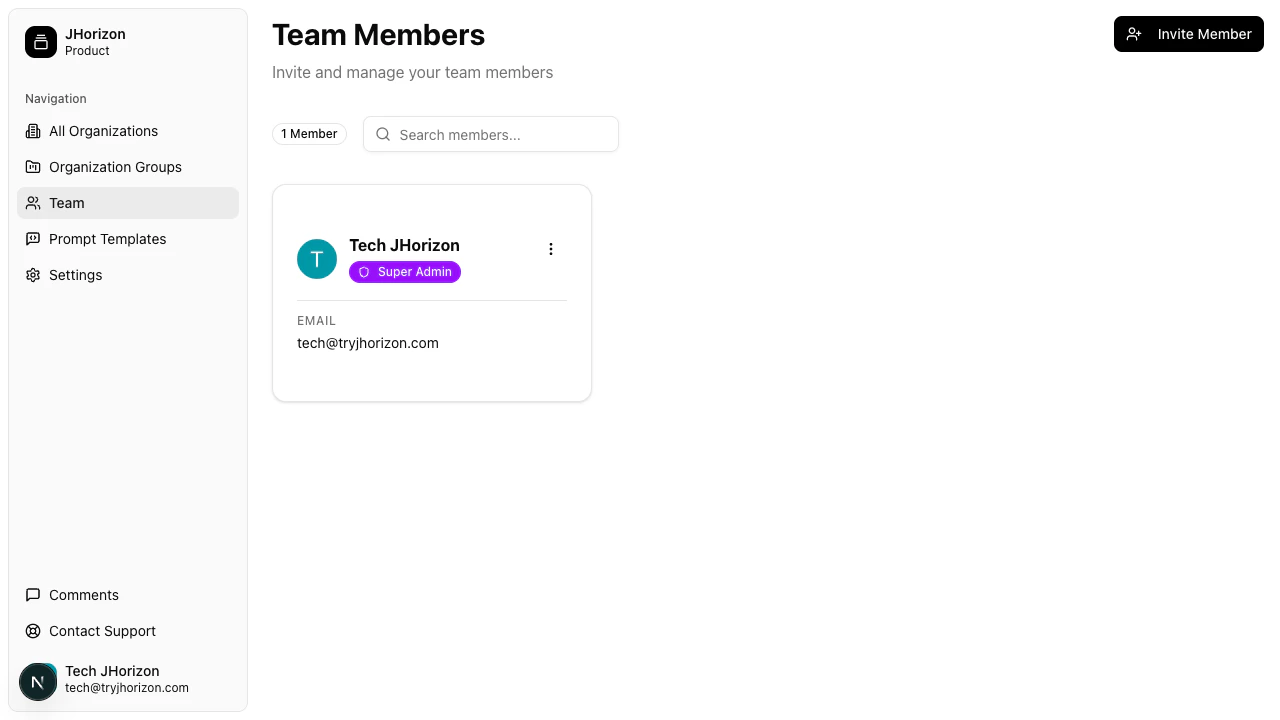
Go to `/product/team` to view all members of your company. Each entry shows the member's avatar, name, role, and email address.
## Roles
| Role | Permissions |
| --------- | ------------------------------------------------------------------------------------------- |
| **Admin** | Full access to all organizations and platform settings. Can invite and manage team members. |
| **User** | Access to assigned organizations. Can view and interact with dashboards and chat. |
## Invite a team member
Click **Invite** on the team page.
## Navigate to the team page
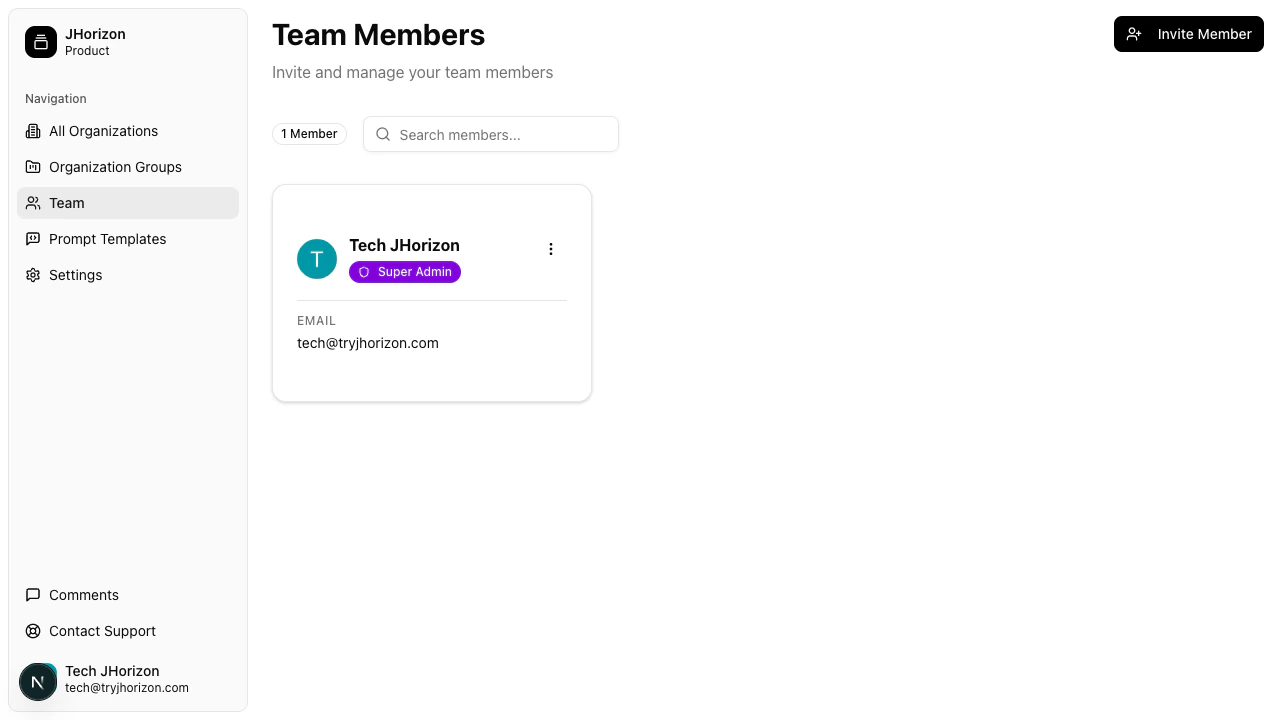
Go to `/product/team` to view all members of your company. Each entry shows the member's avatar, name, role, and email address.
## Roles
| Role | Permissions |
| --------- | ------------------------------------------------------------------------------------------- |
| **Admin** | Full access to all organizations and platform settings. Can invite and manage team members. |
| **User** | Access to assigned organizations. Can view and interact with dashboards and chat. |
## Invite a team member
Click **Invite** on the team page.
 Enter the team member's email address and select a role: **User** or **Admin**.
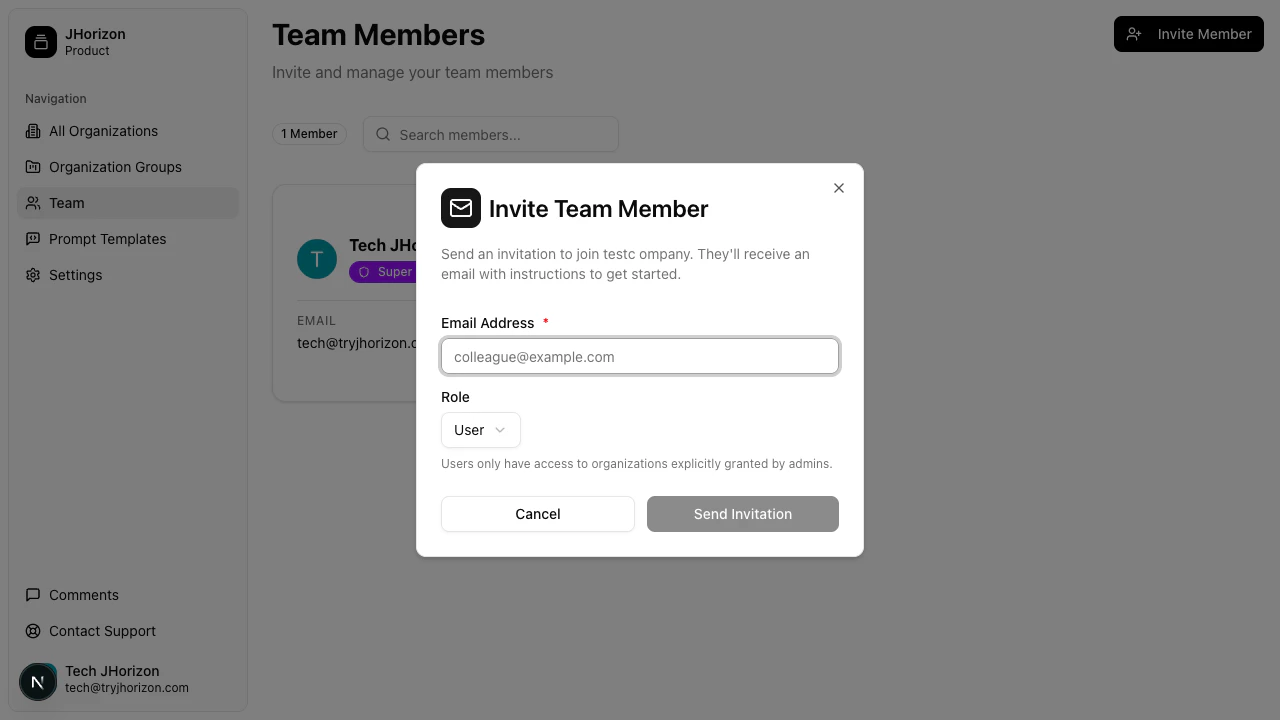 Click **Send Invitation**. The team member receives an email with instructions to join your company.
The **Invite** button is disabled if you do not have permission to invite members. Contact an Admin in your company to request access.
## Search members
Use the search bar at the top of the team page to filter members by name or email. The member count badge next to the search bar shows the total number of team members.
## Manage existing members
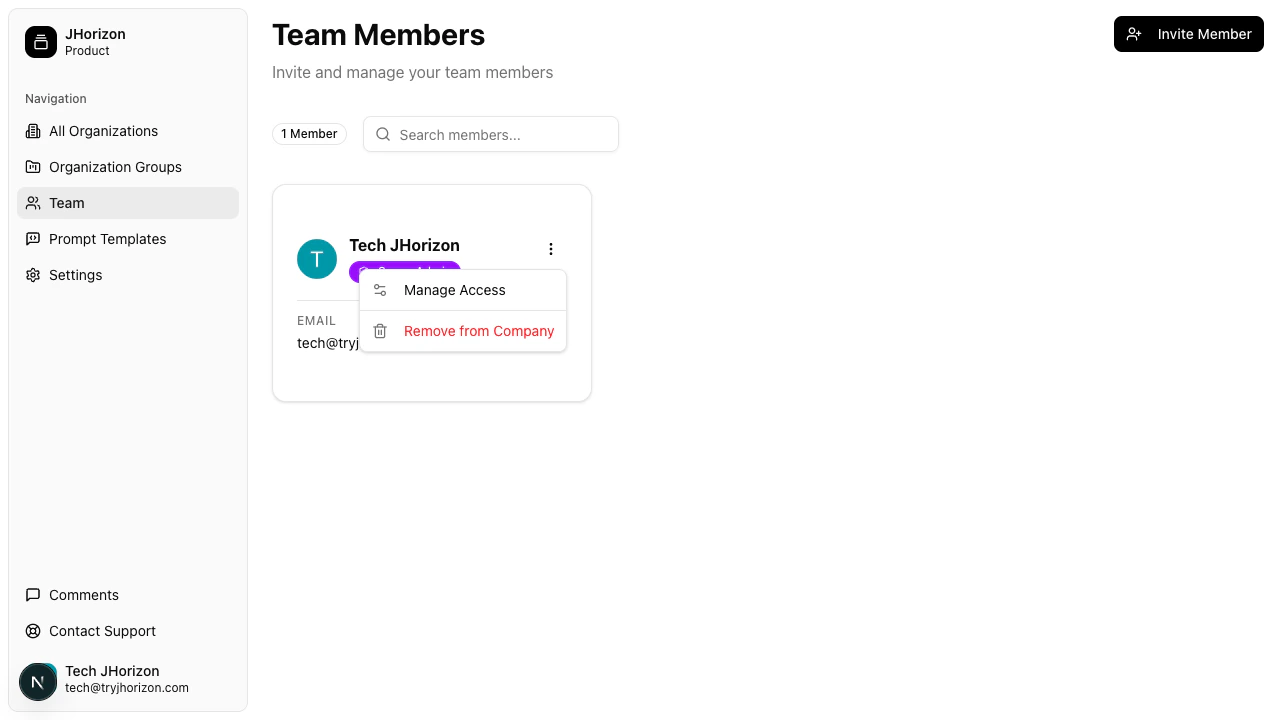
Click the actions menu next to any team member to access management options:
* **Manage Access** — control which organizations the member can access
* **Remove from Company** — revoke the member's access to the platform entirely
Click **Send Invitation**. The team member receives an email with instructions to join your company.
The **Invite** button is disabled if you do not have permission to invite members. Contact an Admin in your company to request access.
## Search members
Use the search bar at the top of the team page to filter members by name or email. The member count badge next to the search bar shows the total number of team members.
## Manage existing members
Click the actions menu next to any team member to access management options:
* **Manage Access** — control which organizations the member can access
* **Remove from Company** — revoke the member's access to the platform entirely
 ## Troubleshooting
Only Admins can invite new team members. If the Invite button is grayed out, your account has the User role. Contact an Admin in your company to either send the invitation on your behalf or upgrade your role.
Ask the team member to check their spam or junk folder. The invitation email is sent to the address you entered in the invite modal. If the email address was mistyped, send a new invitation with the correct address.
Role changes require Admin permissions. If you are an Admin and the option is not available, the member may be the last remaining Admin — at least one Admin must exist at all times.
## Related pages
* [Company settings](/team/company-settings) — manage company-level configuration
## Troubleshooting
Only Admins can invite new team members. If the Invite button is grayed out, your account has the User role. Contact an Admin in your company to either send the invitation on your behalf or upgrade your role.
Ask the team member to check their spam or junk folder. The invitation email is sent to the address you entered in the invite modal. If the email address was mistyped, send a new invitation with the correct address.
Role changes require Admin permissions. If you are an Admin and the option is not available, the member may be the last remaining Admin — at least one Admin must exist at all times.
## Related pages
* [Company settings](/team/company-settings) — manage company-level configuration