> ## Documentation Index
> Fetch the complete documentation index at: https://knowledge.tryjhorizon.com/llms.txt
> Use this file to discover all available pages before exploring further.
# Customer personas
> Define customer segments so J-Horizon can analyze AI visibility through different audience lenses.
Customer personas tell J-Horizon who your brand serves. When personas are defined, J-Horizon evaluates AI search engine responses through the lens of each customer segment, giving you a more nuanced view of how different audiences experience your brand in AI-generated results.
Navigate to your organization's **Settings** and select the **Personas** tab.
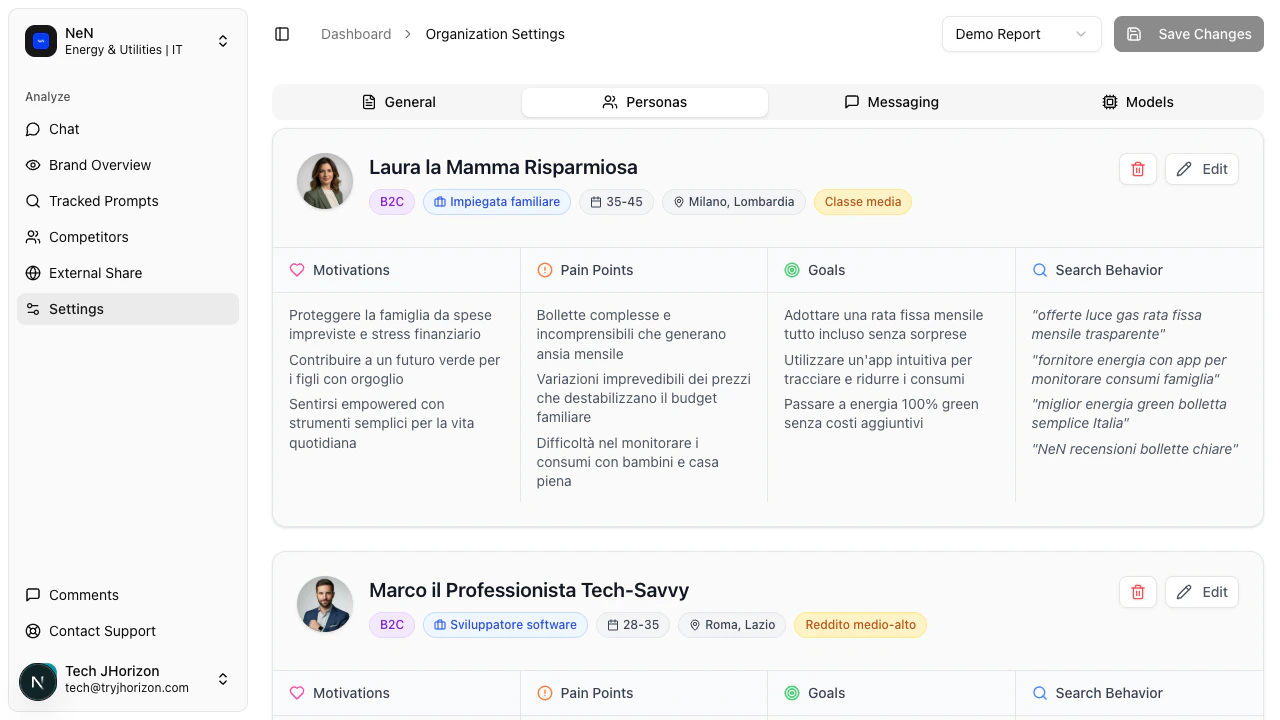 ## What personas do
Each persona represents a distinct customer segment. J-Horizon uses persona data to analyze whether AI search engine responses align with the needs, goals, and search behavior of your target audiences. This surfaces insights that a single, generic analysis would miss.
## Persona fields
Each persona card contains the following fields:
| Field | Description |
| ------------------- | ------------------------------------------------------------------------------------ |
| **Demographics** | Age range, role, location, or other demographic attributes of this segment. |
| **Motivations** | What drives this customer segment to search for solutions like yours. |
| **Pain Points** | The problems or frustrations this segment experiences. |
| **Goals** | What this customer segment is trying to achieve. |
| **Search Behavior** | How this segment searches for information — platforms used, query styles, frequency. |
## Create a persona
Navigate to your organization's **Settings** and select the **Personas** tab.
Click **Add Persona**. A new persona card appears with empty fields.
Complete each field with information about this customer segment. Be specific — the more detailed your persona data, the more targeted your visibility analysis becomes.
Click **Save** to store the persona. It takes effect on the next analysis run.
## Edit or delete a persona
To edit a persona, select it from the **Personas** tab, update the fields, and save your changes. To delete a persona, open the persona card and click **Delete**.
## Best practices
* Define at least 2-3 personas that represent your primary customer segments
* Base personas on real customer data rather than assumptions
* Review personas quarterly as your target audience evolves
* Use the [Persona filter](/dashboard/filters-and-tools) on the dashboard to see how each segment experiences your brand differently
## Related pages
* [Brand messaging](/organizations/messaging) — Define pain points on the Messaging tab (same settings page)
* [Filters and tools](/dashboard/filters-and-tools) — Use persona filters on the dashboard
* [Brand profile](/organizations/brand-profile) — Edit your brand details, keywords, and variations
## What personas do
Each persona represents a distinct customer segment. J-Horizon uses persona data to analyze whether AI search engine responses align with the needs, goals, and search behavior of your target audiences. This surfaces insights that a single, generic analysis would miss.
## Persona fields
Each persona card contains the following fields:
| Field | Description |
| ------------------- | ------------------------------------------------------------------------------------ |
| **Demographics** | Age range, role, location, or other demographic attributes of this segment. |
| **Motivations** | What drives this customer segment to search for solutions like yours. |
| **Pain Points** | The problems or frustrations this segment experiences. |
| **Goals** | What this customer segment is trying to achieve. |
| **Search Behavior** | How this segment searches for information — platforms used, query styles, frequency. |
## Create a persona
Navigate to your organization's **Settings** and select the **Personas** tab.
Click **Add Persona**. A new persona card appears with empty fields.
Complete each field with information about this customer segment. Be specific — the more detailed your persona data, the more targeted your visibility analysis becomes.
Click **Save** to store the persona. It takes effect on the next analysis run.
## Edit or delete a persona
To edit a persona, select it from the **Personas** tab, update the fields, and save your changes. To delete a persona, open the persona card and click **Delete**.
## Best practices
* Define at least 2-3 personas that represent your primary customer segments
* Base personas on real customer data rather than assumptions
* Review personas quarterly as your target audience evolves
* Use the [Persona filter](/dashboard/filters-and-tools) on the dashboard to see how each segment experiences your brand differently
## Related pages
* [Brand messaging](/organizations/messaging) — Define pain points on the Messaging tab (same settings page)
* [Filters and tools](/dashboard/filters-and-tools) — Use persona filters on the dashboard
* [Brand profile](/organizations/brand-profile) — Edit your brand details, keywords, and variations