> ## Documentation Index
> Fetch the complete documentation index at: https://knowledge.tryjhorizon.com/llms.txt
> Use this file to discover all available pages before exploring further.
# Manage organizations
> Sort, filter, and organize your brands using status tabs, groups, and bulk actions.
The organizations page gives you tools to sort, filter, and manage all the brands in your company account.
## Status tabs
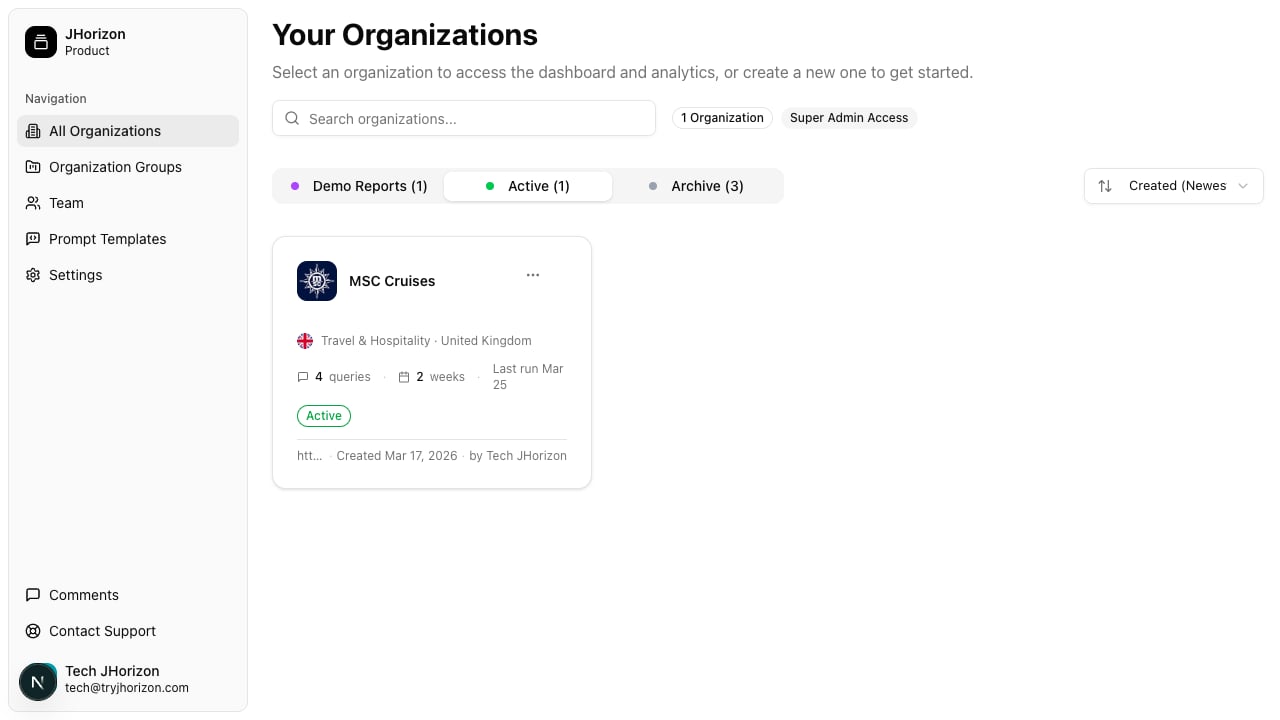
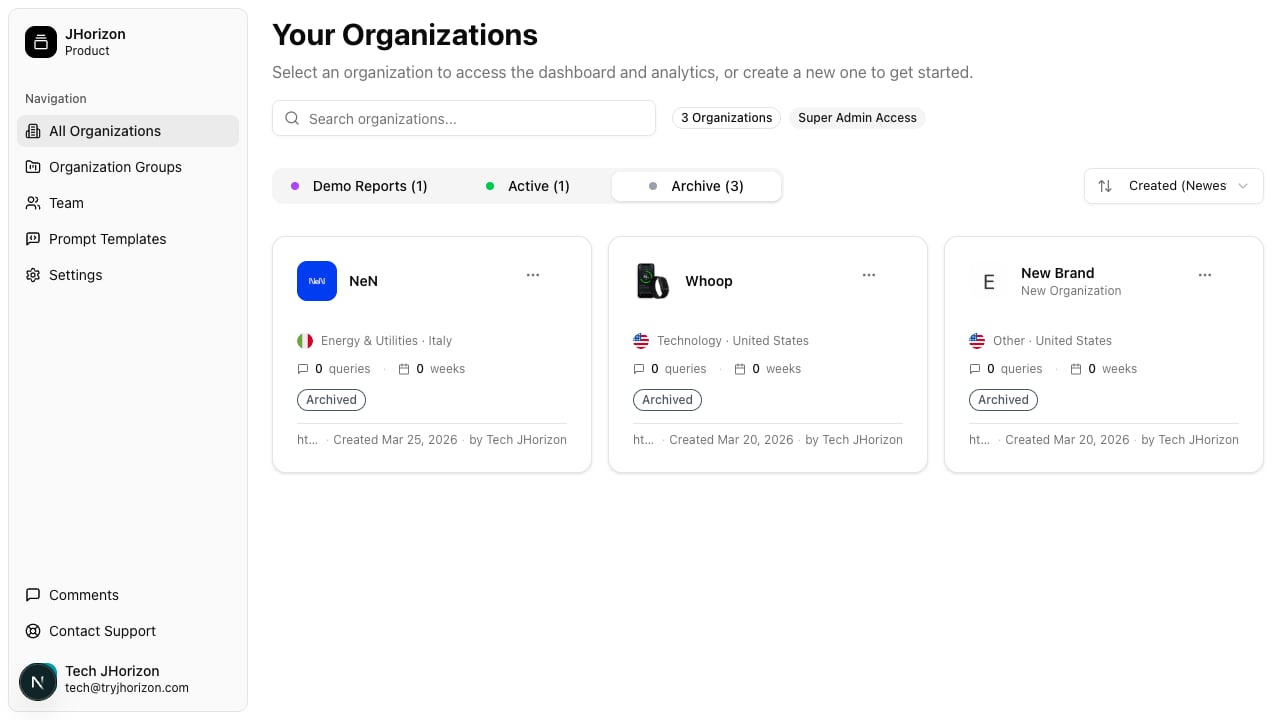
Three tabs at the top of the organizations page filter your list by status:
* **Demo Reports** — Shows organizations populated with sample data. Use these to explore the dashboard and reports without running a live analysis.
* **Active** — Shows organizations with live monitoring enabled. These brands have scheduled analysis runs and receive updated visibility data.
* **Archive** — Shows organizations where monitoring is paused. Historical data is preserved, but no new analysis runs occur.
 ## Sort options
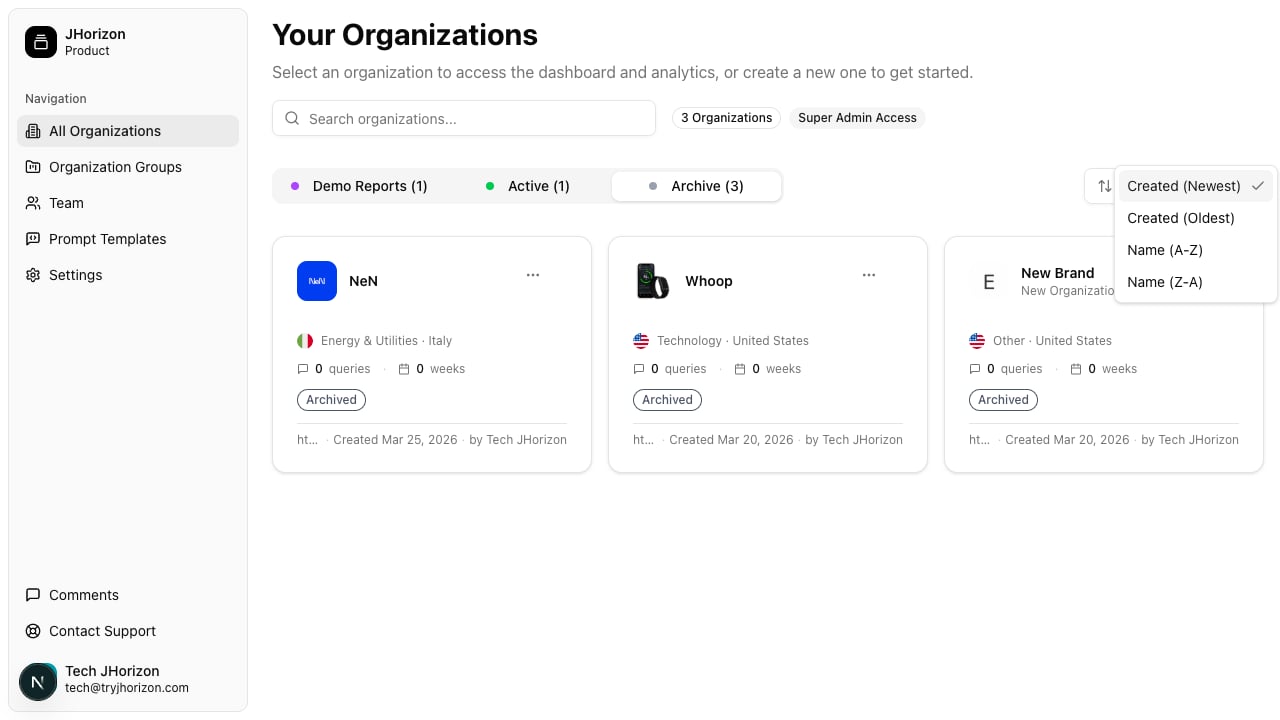
Use the sort dropdown to reorder your organizations list:
* **Created Newest** — Most recently created organizations appear first
* **Created Oldest** — Oldest organizations appear first
* **Name A-Z** — Alphabetical order
* **Name Z-A** — Reverse alphabetical order
## Sort options
Use the sort dropdown to reorder your organizations list:
* **Created Newest** — Most recently created organizations appear first
* **Created Oldest** — Oldest organizations appear first
* **Name A-Z** — Alphabetical order
* **Name Z-A** — Reverse alphabetical order
 ## Search
Use the search bar at the top of the organizations page to filter organizations by name. Results update as you type.
## Organization actions
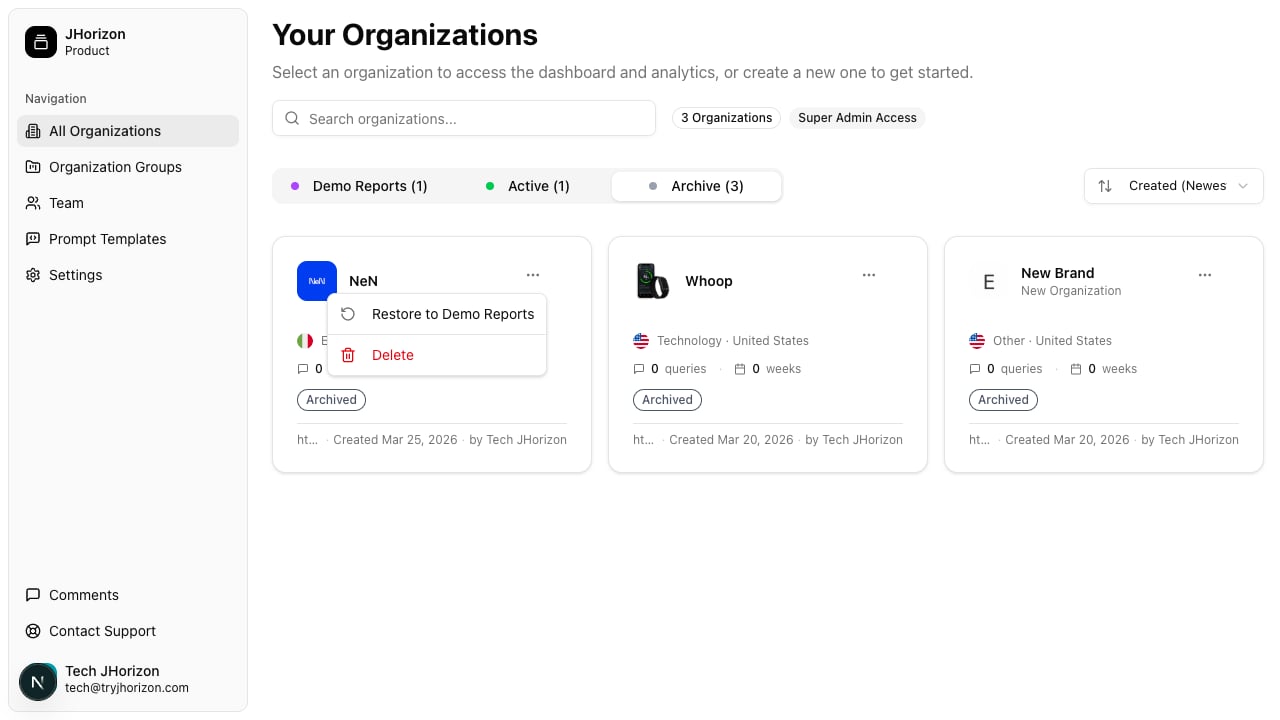
Click the three-dot menu on any organization card to access available actions. The actions differ depending on the organization's current status:
| Status | Available actions |
| ---------------- | ----------------------------------------------- |
| **Demo Reports** | Move to Active, Move to Archive, Delete |
| **Active** | Move to Archive, Delete |
| **Archive** | Restore to Demo Reports, Move to Active, Delete |
## Search
Use the search bar at the top of the organizations page to filter organizations by name. Results update as you type.
## Organization actions
Click the three-dot menu on any organization card to access available actions. The actions differ depending on the organization's current status:
| Status | Available actions |
| ---------------- | ----------------------------------------------- |
| **Demo Reports** | Move to Active, Move to Archive, Delete |
| **Active** | Move to Archive, Delete |
| **Archive** | Restore to Demo Reports, Move to Active, Delete |
 Deleting an organization is permanent and cannot be undone. All visibility data, tracked prompts, citations, and historical analysis results are removed.
## Organization groups
Groups let you organize related organizations together. Use groups to cluster brands by region, business unit, client, or any other category that fits your workflow.
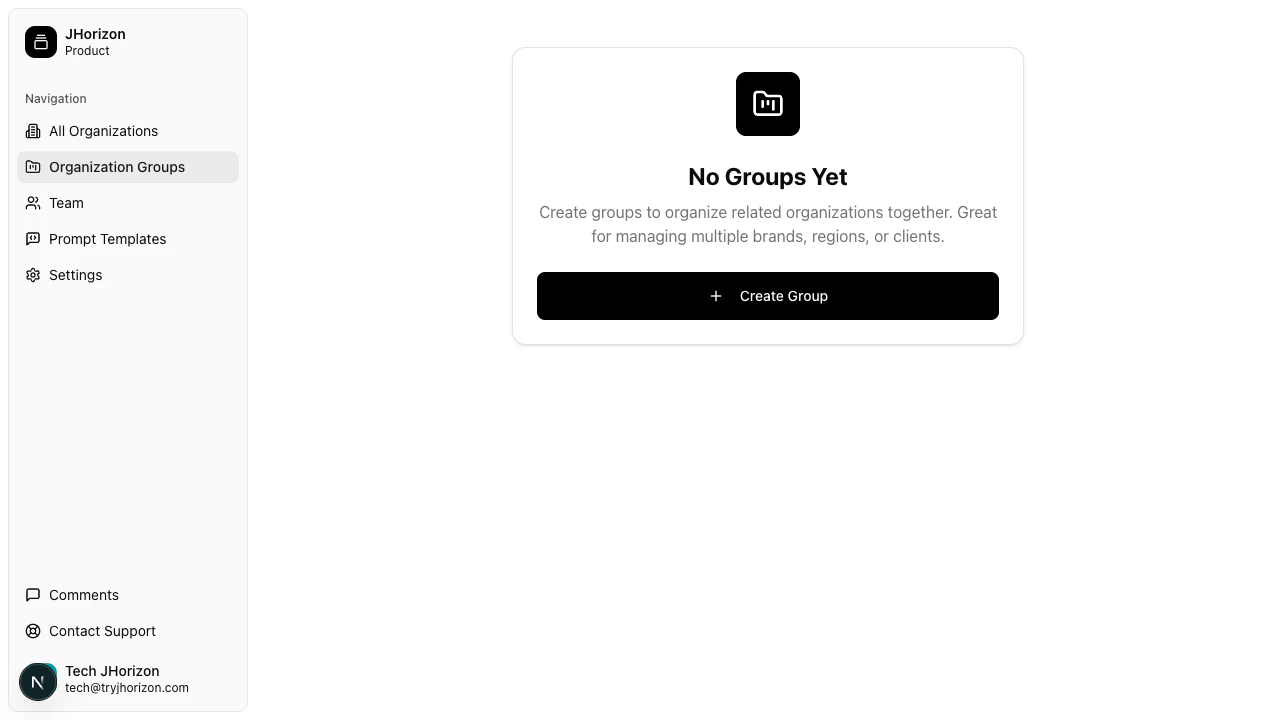
Groups are managed from the **Groups** section of the product. To create a group:
Go to **Groups** in the product navigation.
Deleting an organization is permanent and cannot be undone. All visibility data, tracked prompts, citations, and historical analysis results are removed.
## Organization groups
Groups let you organize related organizations together. Use groups to cluster brands by region, business unit, client, or any other category that fits your workflow.
Groups are managed from the **Groups** section of the product. To create a group:
Go to **Groups** in the product navigation.
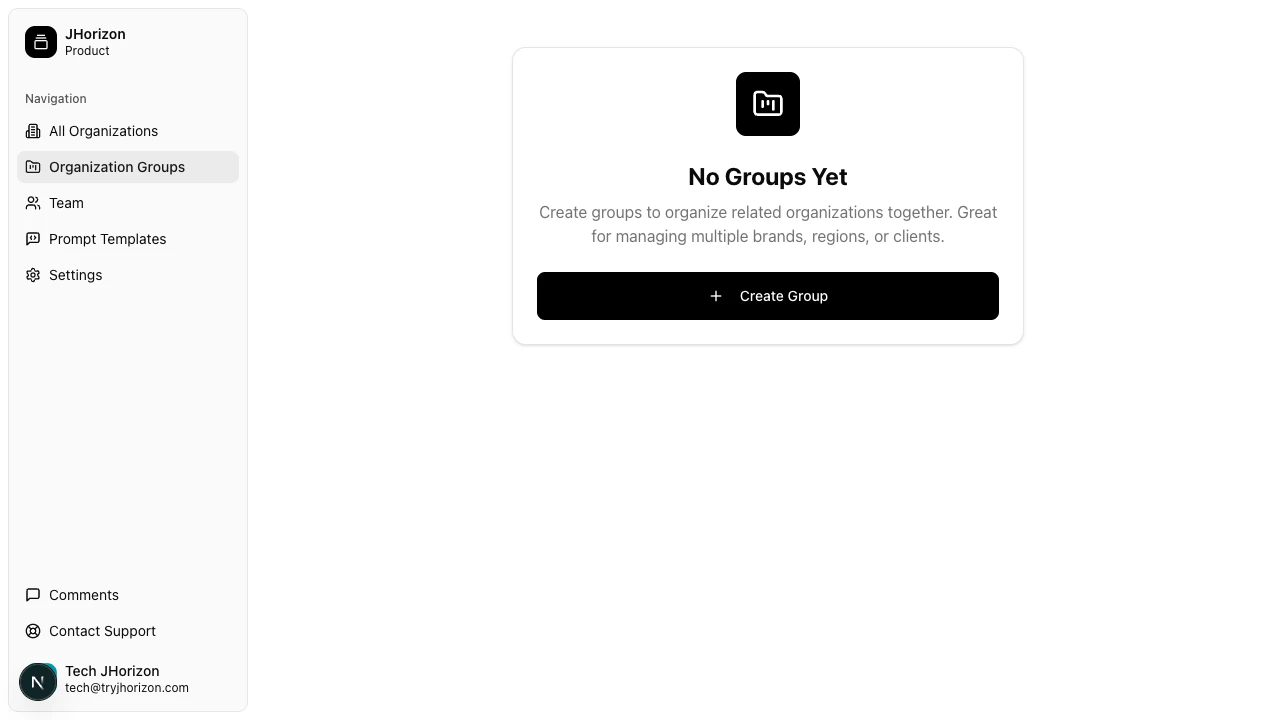 Click **Create Group** and enter a name for the group.
 Select the organizations you want to include in the group. An organization can belong to multiple groups.
Groups are useful for agencies managing multiple client brands or enterprises with regional brand variations. They keep your organizations list organized as your account grows.
## Related pages
* [Create an organization](/organizations/create-organization) — Walk through the onboarding wizard to set up a new brand
* [Organizations overview](/organizations/overview) — Learn about organizations in J-Horizon
Select the organizations you want to include in the group. An organization can belong to multiple groups.
Groups are useful for agencies managing multiple client brands or enterprises with regional brand variations. They keep your organizations list organized as your account grows.
## Related pages
* [Create an organization](/organizations/create-organization) — Walk through the onboarding wizard to set up a new brand
* [Organizations overview](/organizations/overview) — Learn about organizations in J-Horizon