> ## Documentation Index
> Fetch the complete documentation index at: https://knowledge.tryjhorizon.com/llms.txt
> Use this file to discover all available pages before exploring further.
# Create an organization
> Walk through the 8-step onboarding wizard to set up a new brand for AI visibility monitoring.
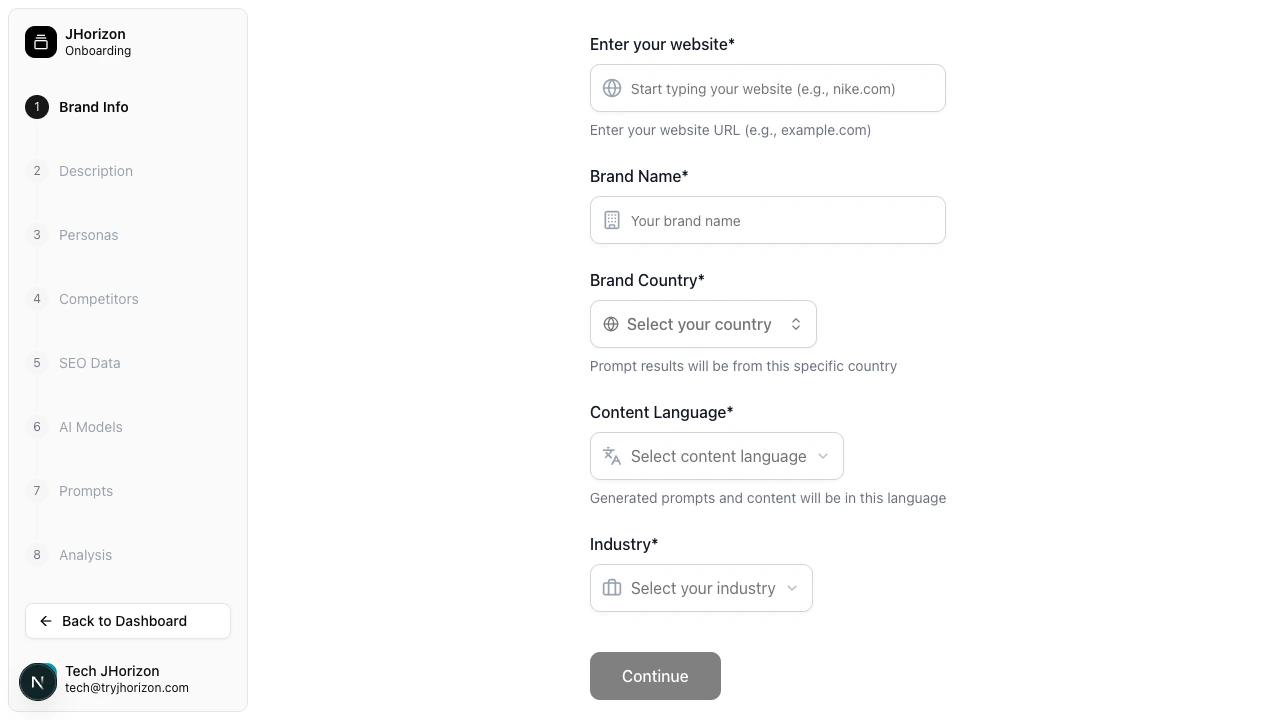
When you create a new organization, J-Horizon guides you through an 8-step wizard that collects the information needed to monitor your brand across AI search engines.
 ## Onboarding wizard
Enter your brand's core details:
| Field | Required | Details |
| -------------- | -------- | ------------------------------------------------------------------------------------------ |
| **Brand Name** | Yes | The name of the brand you want to monitor. |
| **Website** | Yes | Your brand's primary website URL. Must include the full URL (e.g., `https://example.com`). |
| **Industry** | Yes | Select from the dropdown. If your industry is not listed, choose the closest match. |
| **Country** | Yes | The primary market for this brand. This affects geographic analysis. |
Describe what your brand offers. J-Horizon uses this information to evaluate how accurately AI search engines represent your brand.
| Field | Required | Details |
| ----------------------- | -------- | ------------------------------------------------------------------------------ |
| **Products / Services** | Yes | List the main products or services your brand provides. |
| **Value Proposition** | Yes | Summarize the core value your brand delivers. 1,000 character limit. |
| **USP** | Yes | Define what differentiates your brand from competitors. 1,000 character limit. |
| **Target Audience** | No | Describe who your brand serves. 1,600 character limit. |
Define your target customer segments. Personas shape how J-Horizon evaluates AI responses by providing audience context.
Add one or more personas with demographics, motivations, pain points, goals, and search behavior details. Each persona gets its own card with an avatar selector.
Add the brands you want to compare against. J-Horizon tracks how these competitors appear alongside your brand in AI-generated responses.
Enter competitor names and websites to include them in your analysis.
Provide search-related information that helps J-Horizon understand your brand's positioning:
* **Brand Keywords** — The keywords and terms associated with your brand. Include product names, category terms, and common search phrases.
* **Target Audience** — Describe who you want to reach through AI search engines. 1,600 character limit.
Keywords improve the accuracy of your analysis. Include both branded terms (your brand name, product names) and unbranded terms (category keywords, industry terms).
Select which AI platforms to monitor. Available options include ChatGPT, Claude, Gemini, Perplexity, and others.
You can monitor all available platforms or focus on specific ones relevant to your audience.
Add the initial search queries you want to monitor. These are the prompts J-Horizon submits to each selected AI platform to track how your brand appears in responses.
You can also click **AI Generate** to have J-Horizon suggest prompts based on your brand profile. See [Platform limits](/reference/limits) for prompt capacity details.
Review your configuration across all previous steps. Confirm that brand details, competitors, AI models, and tracked prompts are correct, then click **Start Analysis** to launch your first analysis run.
The initial analysis typically takes a few minutes depending on the number of tracked prompts and AI models selected. You can navigate away from this page — the analysis continues in the background.
All required fields must be completed before you can proceed to the next step. Use the back button to return to any previous step and edit your entries.
## After setup
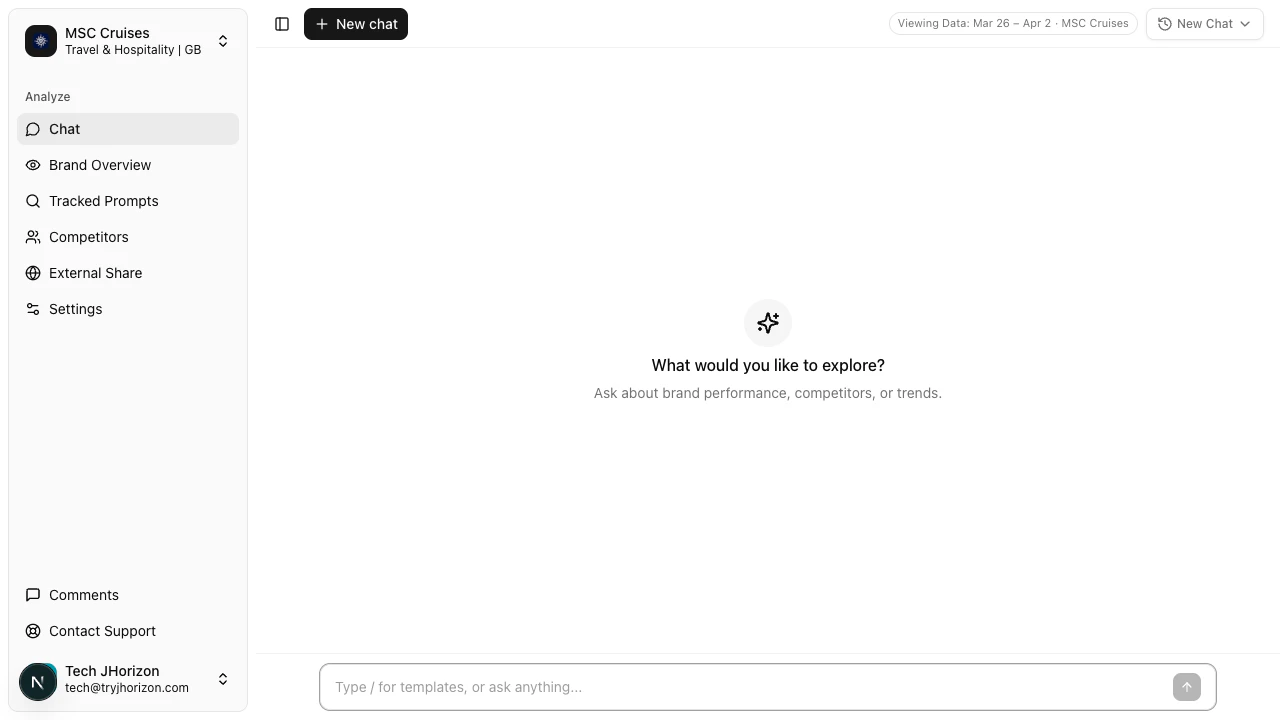
Once you complete the wizard, your new organization appears in **Your Organizations** with an "Analysis Running" indicator. The first analysis typically takes a few minutes depending on the number of tracked prompts and AI models selected.
When the analysis completes, your dashboard populates with visibility scores, citations, sentiment data, and competitive positioning.
## Onboarding wizard
Enter your brand's core details:
| Field | Required | Details |
| -------------- | -------- | ------------------------------------------------------------------------------------------ |
| **Brand Name** | Yes | The name of the brand you want to monitor. |
| **Website** | Yes | Your brand's primary website URL. Must include the full URL (e.g., `https://example.com`). |
| **Industry** | Yes | Select from the dropdown. If your industry is not listed, choose the closest match. |
| **Country** | Yes | The primary market for this brand. This affects geographic analysis. |
Describe what your brand offers. J-Horizon uses this information to evaluate how accurately AI search engines represent your brand.
| Field | Required | Details |
| ----------------------- | -------- | ------------------------------------------------------------------------------ |
| **Products / Services** | Yes | List the main products or services your brand provides. |
| **Value Proposition** | Yes | Summarize the core value your brand delivers. 1,000 character limit. |
| **USP** | Yes | Define what differentiates your brand from competitors. 1,000 character limit. |
| **Target Audience** | No | Describe who your brand serves. 1,600 character limit. |
Define your target customer segments. Personas shape how J-Horizon evaluates AI responses by providing audience context.
Add one or more personas with demographics, motivations, pain points, goals, and search behavior details. Each persona gets its own card with an avatar selector.
Add the brands you want to compare against. J-Horizon tracks how these competitors appear alongside your brand in AI-generated responses.
Enter competitor names and websites to include them in your analysis.
Provide search-related information that helps J-Horizon understand your brand's positioning:
* **Brand Keywords** — The keywords and terms associated with your brand. Include product names, category terms, and common search phrases.
* **Target Audience** — Describe who you want to reach through AI search engines. 1,600 character limit.
Keywords improve the accuracy of your analysis. Include both branded terms (your brand name, product names) and unbranded terms (category keywords, industry terms).
Select which AI platforms to monitor. Available options include ChatGPT, Claude, Gemini, Perplexity, and others.
You can monitor all available platforms or focus on specific ones relevant to your audience.
Add the initial search queries you want to monitor. These are the prompts J-Horizon submits to each selected AI platform to track how your brand appears in responses.
You can also click **AI Generate** to have J-Horizon suggest prompts based on your brand profile. See [Platform limits](/reference/limits) for prompt capacity details.
Review your configuration across all previous steps. Confirm that brand details, competitors, AI models, and tracked prompts are correct, then click **Start Analysis** to launch your first analysis run.
The initial analysis typically takes a few minutes depending on the number of tracked prompts and AI models selected. You can navigate away from this page — the analysis continues in the background.
All required fields must be completed before you can proceed to the next step. Use the back button to return to any previous step and edit your entries.
## After setup
Once you complete the wizard, your new organization appears in **Your Organizations** with an "Analysis Running" indicator. The first analysis typically takes a few minutes depending on the number of tracked prompts and AI models selected.
When the analysis completes, your dashboard populates with visibility scores, citations, sentiment data, and competitive positioning.
 ## Troubleshooting
All required fields in the current step must be completed before you can proceed. Check for empty required fields, invalid URL formats, or missing selections. The wizard highlights fields that need attention.
The first analysis run may take several minutes depending on the number of tracked prompts and AI models. If the "Analysis Running" indicator persists for more than 15 minutes, refresh the page. If the issue continues, contact support.
The industry dropdown contains a fixed list of categories. If your specific industry is not listed, select the closest match. You can provide additional industry context in the Brand Description step.
## Next steps
Edit brand details, keywords, and variations.
Define target customer segments for your analysis.
Choose which AI platforms to monitor.
## Troubleshooting
All required fields in the current step must be completed before you can proceed. Check for empty required fields, invalid URL formats, or missing selections. The wizard highlights fields that need attention.
The first analysis run may take several minutes depending on the number of tracked prompts and AI models. If the "Analysis Running" indicator persists for more than 15 minutes, refresh the page. If the issue continues, contact support.
The industry dropdown contains a fixed list of categories. If your specific industry is not listed, select the closest match. You can provide additional industry context in the Brand Description step.
## Next steps
Edit brand details, keywords, and variations.
Define target customer segments for your analysis.
Choose which AI platforms to monitor.