> ## Documentation Index
> Fetch the complete documentation index at: https://knowledge.tryjhorizon.com/llms.txt
> Use this file to discover all available pages before exploring further.
# Request access
> Submit a request to join J-Horizon's invitation-only AI visibility platform.
J-Horizon uses an invitation-only access model. To use the platform, you submit a request through the public website and the J-Horizon team reviews it.
## Submit a request
Navigate to [tryjhorizon.com](https://tryjhorizon.com). The landing page displays an overview of the platform and a call-to-action to request access.
 Click **Request an Invitation**. This navigates you to the contact page at `/contact`, which displays the invitation request form.
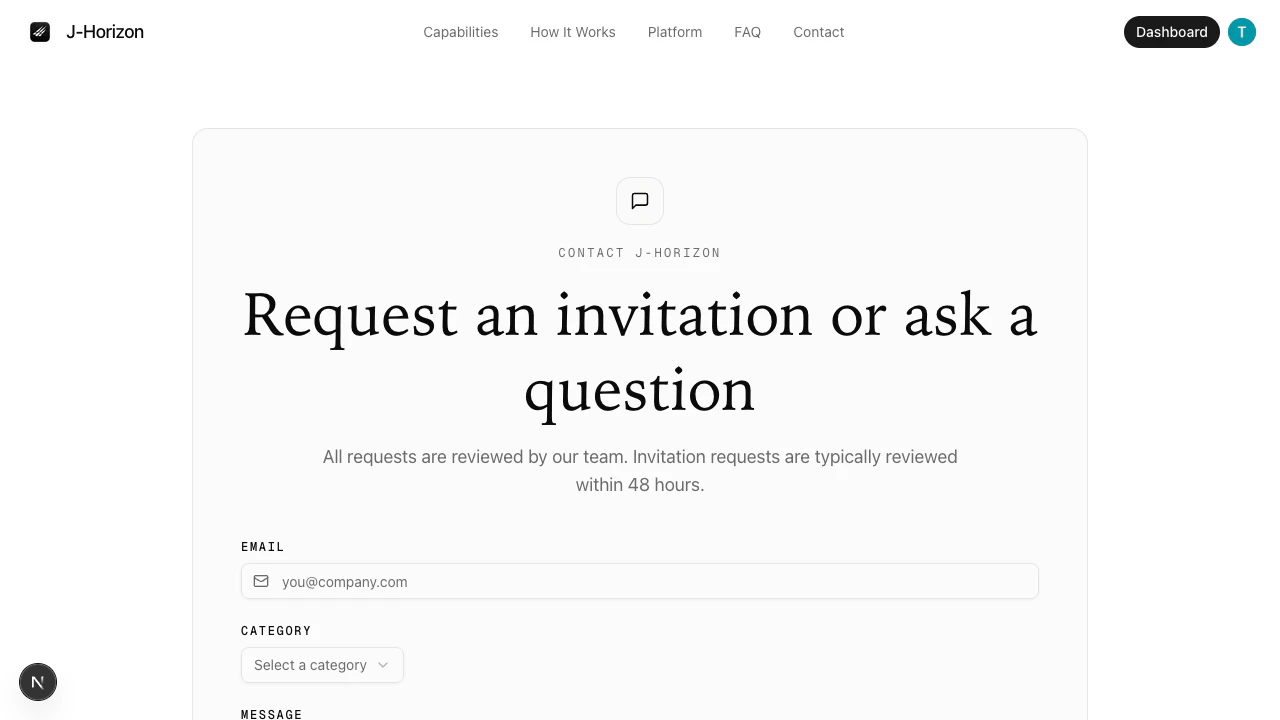 Complete the form fields:
* **Email** — Your work email address. This field is required.
* **Category** — Select a category from the dropdown. Options include:
* **Request Invitation** — Select this to request platform access.
* **Questions** — Select this if you have questions before requesting access.
* **Other** — Select this for any other inquiry.
* **Message** — Describe your use case or provide additional context. This field has a 2,000-character limit.
Click **Submit**. A confirmation message appears after the form is submitted successfully.
## What happens next
The J-Horizon team reviews all access requests within 48 hours. You receive an email at the address you provided with next steps, including your account setup instructions if approved.
## Troubleshooting
The form does not submit if required fields are missing or contain invalid data.
* **Missing email** — The Email field is required. Enter a valid email address before submitting.
* **Invalid email format** — The form validates that your email follows a standard format (e.g., `name@company.com`). Correct any formatting issues and try again.
* **Category not selected** — Choose a category from the dropdown before submitting.
Use your work email address when requesting access. This helps the J-Horizon team verify your organization and speeds up the review process.
## Next steps
After you receive your invitation, sign in to the platform.
Common questions about access, data, and the platform.
Complete the form fields:
* **Email** — Your work email address. This field is required.
* **Category** — Select a category from the dropdown. Options include:
* **Request Invitation** — Select this to request platform access.
* **Questions** — Select this if you have questions before requesting access.
* **Other** — Select this for any other inquiry.
* **Message** — Describe your use case or provide additional context. This field has a 2,000-character limit.
Click **Submit**. A confirmation message appears after the form is submitted successfully.
## What happens next
The J-Horizon team reviews all access requests within 48 hours. You receive an email at the address you provided with next steps, including your account setup instructions if approved.
## Troubleshooting
The form does not submit if required fields are missing or contain invalid data.
* **Missing email** — The Email field is required. Enter a valid email address before submitting.
* **Invalid email format** — The form validates that your email follows a standard format (e.g., `name@company.com`). Correct any formatting issues and try again.
* **Category not selected** — Choose a category from the dropdown before submitting.
Use your work email address when requesting access. This helps the J-Horizon team verify your organization and speeds up the review process.
## Next steps
After you receive your invitation, sign in to the platform.
Common questions about access, data, and the platform.