> ## Documentation Index
> Fetch the complete documentation index at: https://knowledge.tryjhorizon.com/llms.txt
> Use this file to discover all available pages before exploring further.
# Account settings
> Manage your user profile, sign out, and access support from the J-Horizon platform.
Your account settings are accessible from the user profile menu in the top navigation bar. Click your avatar or name to open the dropdown.
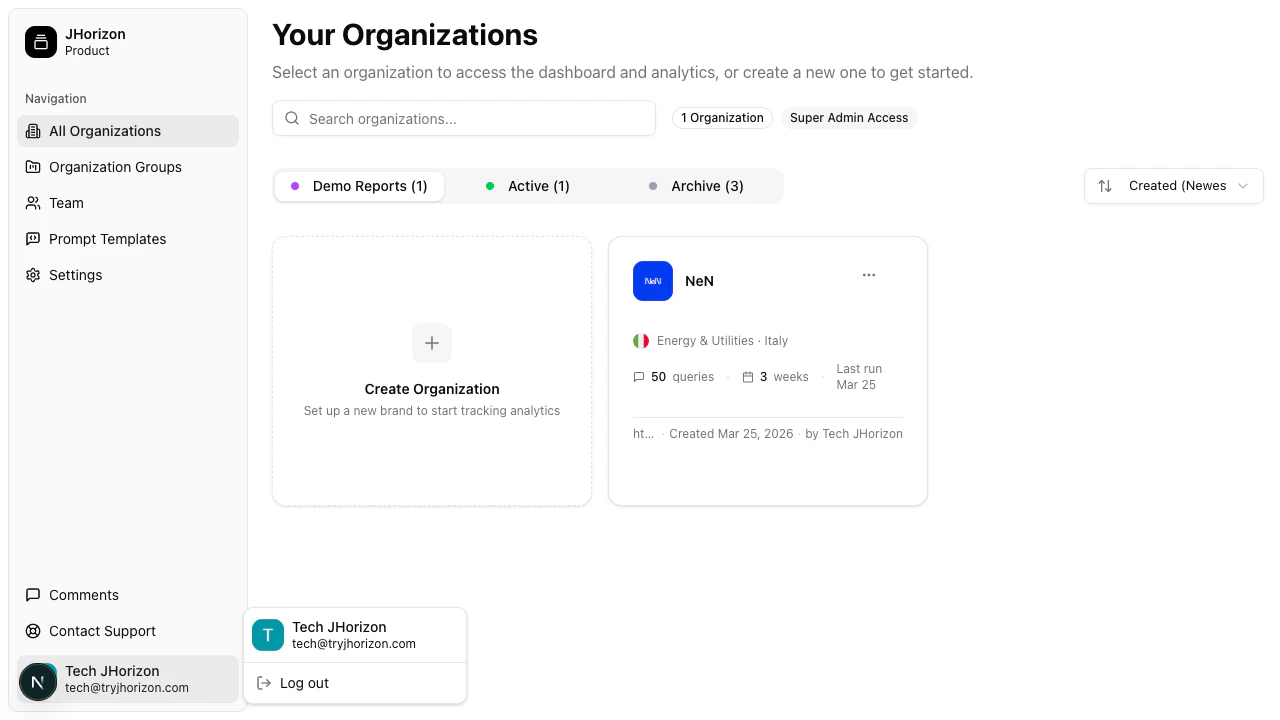 ## Profile menu options
The profile dropdown provides access to:
| Option | Description |
| ------------------ | ----------------------------------------------------------------------------------------------------------------------- |
| **Manage account** | Opens your Clerk-managed account settings where you can update your email, password, and linked authentication methods. |
| **Sign out** | Ends your current session and returns you to the landing page. |
## Manage your account
J-Horizon uses [Clerk](https://clerk.com) for authentication. When you click **Manage account**, the Clerk account management interface opens. From there you can:
* Update your email address
* Change your password
* Manage linked Google accounts
* View your active sessions
Account management is handled by Clerk, not directly by J-Horizon. Changes to your email or password take effect immediately across all sessions.
## Sign out
Click **Sign out** from the profile dropdown to end your session. You are redirected to the J-Horizon landing page. To sign back in, click **Login** in the top navigation.
If you are using a shared computer, always sign out when you are done to prevent unauthorized access to your company's data.
## Get support
If you need help with the platform, you can reach the J-Horizon team through:
* **Email** — Contact support directly via the support link in the navigation bar.
* **Contact form** — Submit a request at [tryjhorizon.com/contact](https://tryjhorizon.com/contact) with your question or issue.
## Related pages
Authentication methods and troubleshooting.
Invite members and manage roles.
## Profile menu options
The profile dropdown provides access to:
| Option | Description |
| ------------------ | ----------------------------------------------------------------------------------------------------------------------- |
| **Manage account** | Opens your Clerk-managed account settings where you can update your email, password, and linked authentication methods. |
| **Sign out** | Ends your current session and returns you to the landing page. |
## Manage your account
J-Horizon uses [Clerk](https://clerk.com) for authentication. When you click **Manage account**, the Clerk account management interface opens. From there you can:
* Update your email address
* Change your password
* Manage linked Google accounts
* View your active sessions
Account management is handled by Clerk, not directly by J-Horizon. Changes to your email or password take effect immediately across all sessions.
## Sign out
Click **Sign out** from the profile dropdown to end your session. You are redirected to the J-Horizon landing page. To sign back in, click **Login** in the top navigation.
If you are using a shared computer, always sign out when you are done to prevent unauthorized access to your company's data.
## Get support
If you need help with the platform, you can reach the J-Horizon team through:
* **Email** — Contact support directly via the support link in the navigation bar.
* **Contact form** — Submit a request at [tryjhorizon.com/contact](https://tryjhorizon.com/contact) with your question or issue.
## Related pages
Authentication methods and troubleshooting.
Invite members and manage roles.