> ## Documentation Index
> Fetch the complete documentation index at: https://knowledge.tryjhorizon.com/llms.txt
> Use this file to discover all available pages before exploring further.
# Prompt templates
> Create reusable prompt templates and use them in AI chat with the slash command.
Prompt templates let you save frequently used questions and reuse them across chat sessions. Templates are shared across all organizations in your company, so every team member can access them.
In the chat input field, type `/` to open the template picker.
Browse available templates by category. Scroll through the list or type to filter.
Click a template to insert its text into the chat input.
Modify the template text if needed, then send the message. The AI chat responds using the template as your question.
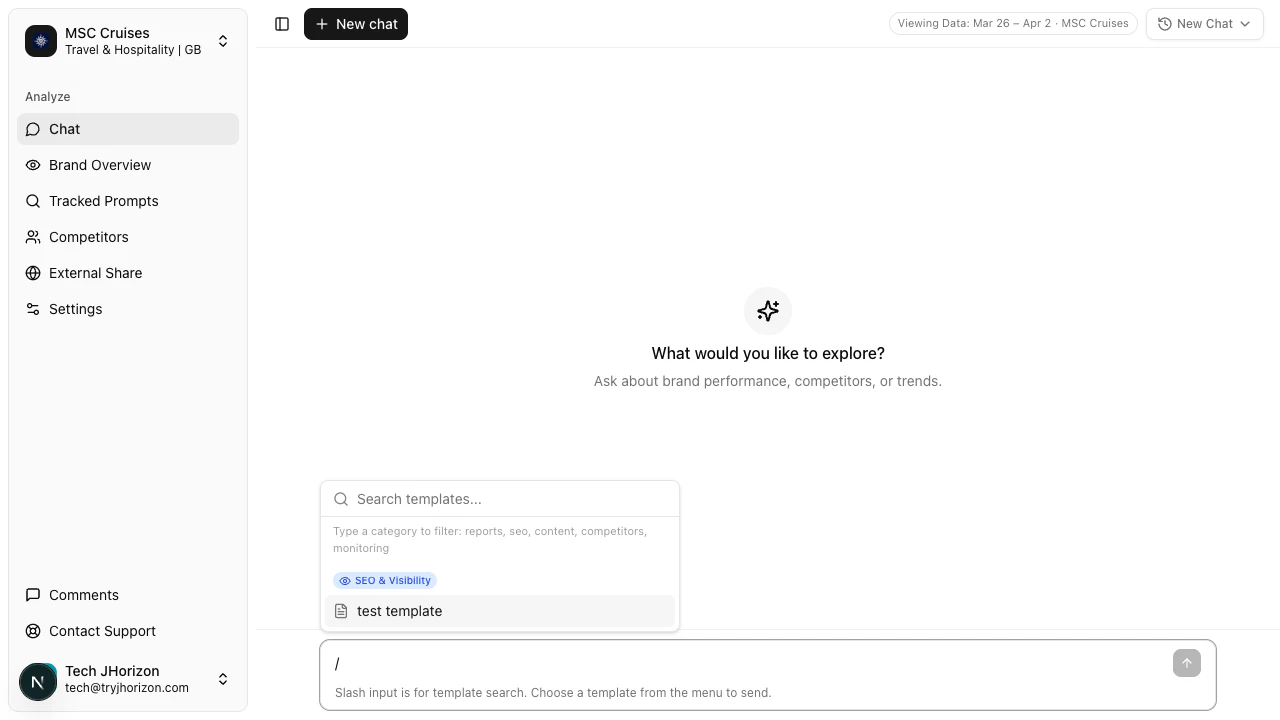 Templates are available in every chat session. Type `/` at any time to access them.
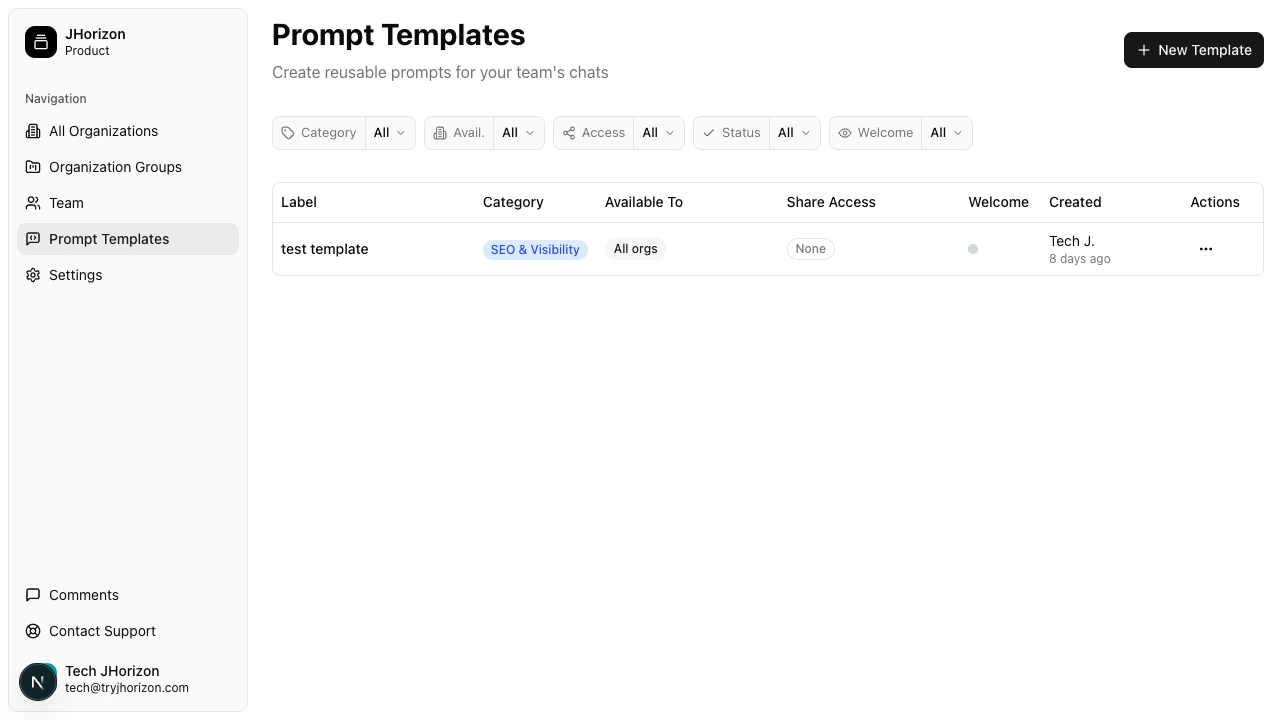
Go to **Prompt Templates** at `/product/prompts`. This is a platform-level page accessible outside of any specific organization.
Click **+ New Template** to create a new template.
Fill in the following fields:
| Field | Description |
| ----------------- | ------------------------------------------------------------------------------------------------------------------------------------- |
| **Template name** | A short, descriptive name for the template. This appears in the `/` picker. |
| **Category** | Group related templates together (e.g., "Visibility", "Competitors", "Citations"). Templates in the picker are organized by category. |
| **Prompt text** | The question or instruction to reuse. Write it as you would type it in chat. |
Configure how the template is shared:
* **Availability** — Choose whether the template is available across **all organizations** in your company or restricted to **specific organizations**.
* **Access** — Set who can use the template: **all team members** or **admins only**.
* **Status** — Set the template to **Active** (visible in the `/` picker and usable in chat), **Inactive** (hidden from the picker, not usable), or **Draft** (work in progress, not yet published).
* **Welcome** — Toggle this on to display the template as a suggested starting question when team members open a new chat session.
Save the template. It becomes available to all team members via the `/` command in chat.
Templates are available in every chat session. Type `/` at any time to access them.
Go to **Prompt Templates** at `/product/prompts`. This is a platform-level page accessible outside of any specific organization.
Click **+ New Template** to create a new template.
Fill in the following fields:
| Field | Description |
| ----------------- | ------------------------------------------------------------------------------------------------------------------------------------- |
| **Template name** | A short, descriptive name for the template. This appears in the `/` picker. |
| **Category** | Group related templates together (e.g., "Visibility", "Competitors", "Citations"). Templates in the picker are organized by category. |
| **Prompt text** | The question or instruction to reuse. Write it as you would type it in chat. |
Configure how the template is shared:
* **Availability** — Choose whether the template is available across **all organizations** in your company or restricted to **specific organizations**.
* **Access** — Set who can use the template: **all team members** or **admins only**.
* **Status** — Set the template to **Active** (visible in the `/` picker and usable in chat), **Inactive** (hidden from the picker, not usable), or **Draft** (work in progress, not yet published).
* **Welcome** — Toggle this on to display the template as a suggested starting question when team members open a new chat session.
Save the template. It becomes available to all team members via the `/` command in chat.
 ## Manage templates
Each template row in the table has an actions menu with the following options:
* **Edit** — modify the template name, text, category, or settings
* **Deactivate** / **Activate** — toggle the template's active status
* **Delete** — permanently remove the template
## Template filters
The prompt templates page at `/product/prompts` includes column filters to help you find specific templates:
| Filter | Options |
| ------------ | -------------------------------------------------------------- |
| **Category** | Filter by the category assigned to each template |
| **Avail.** | Filter by availability scope (all organizations or specific) |
| **Access** | Filter by access level (all team members or admins only) |
| **Status** | Filter by Active, Inactive, or Draft |
| **Welcome** | Filter by whether the template appears as a welcome suggestion |
Create templates for your most common analysis questions — visibility comparisons, competitor benchmarks, and citation reviews. This saves time and ensures consistency across your team's AI chat usage.
## Related pages
* [AI chat](/ai-chat/overview) — chat interface overview
## Manage templates
Each template row in the table has an actions menu with the following options:
* **Edit** — modify the template name, text, category, or settings
* **Deactivate** / **Activate** — toggle the template's active status
* **Delete** — permanently remove the template
## Template filters
The prompt templates page at `/product/prompts` includes column filters to help you find specific templates:
| Filter | Options |
| ------------ | -------------------------------------------------------------- |
| **Category** | Filter by the category assigned to each template |
| **Avail.** | Filter by availability scope (all organizations or specific) |
| **Access** | Filter by access level (all team members or admins only) |
| **Status** | Filter by Active, Inactive, or Draft |
| **Welcome** | Filter by whether the template appears as a welcome suggestion |
Create templates for your most common analysis questions — visibility comparisons, competitor benchmarks, and citation reviews. This saves time and ensures consistency across your team's AI chat usage.
## Related pages
* [AI chat](/ai-chat/overview) — chat interface overview